Push to server
With this feature you can connect a server and push the generated JSON directly to it. At the moment the plugin supports JSONBin, GitHub (direct commit or pull request), GitLab (direct commit or merge request) and custom servers.
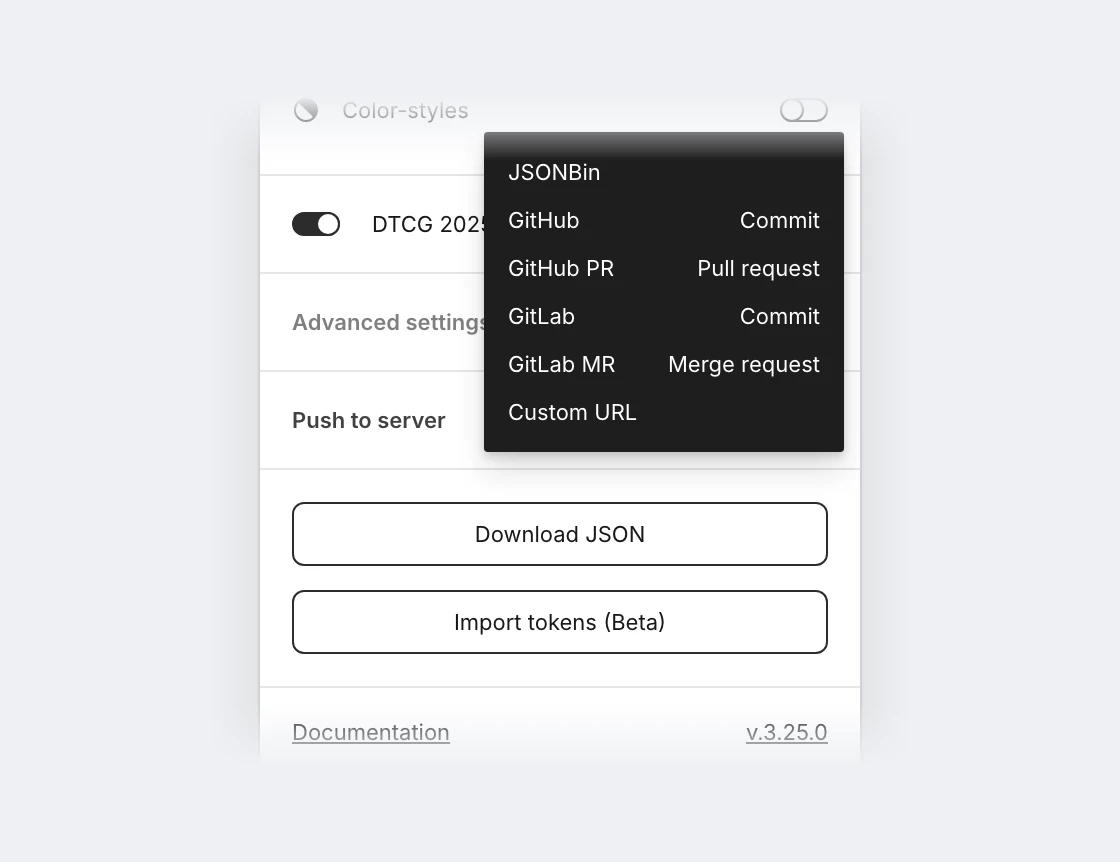
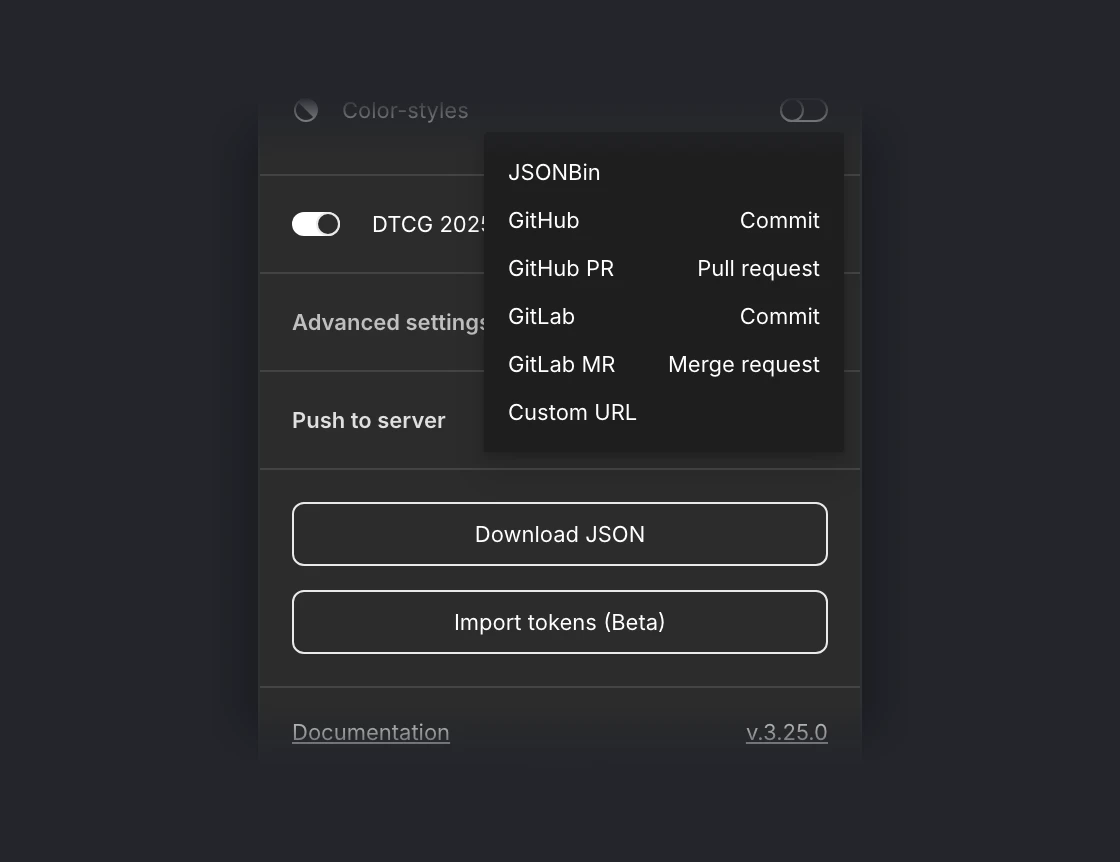
If you connected multiple servers, the plugin will try to push the tokens to all of them one by one. The server list shows where each one pushes to, e.g. acme/tokens · main; click a server to change its settings.
Every field in a server form has a visible label. The ⓘ next to a label explains the field when you hover or focus it. Tokens and keys are masked; the eye in the field shows them. Optional fields such as the commit message are under More options. If you go back with unsaved changes, the form asks whether to save or discard them, and Remove at the bottom deletes the server’s settings and token from the profile after a confirmation.
For GitHub, GitHub PR, GitLab and GitLab MR, Test connection checks the token, the repository and the branch with read-only requests, so you find a typo before the first push. A problem is shown at the field it belongs to. Otherwise, Push to server reports the result of each server in a toast.
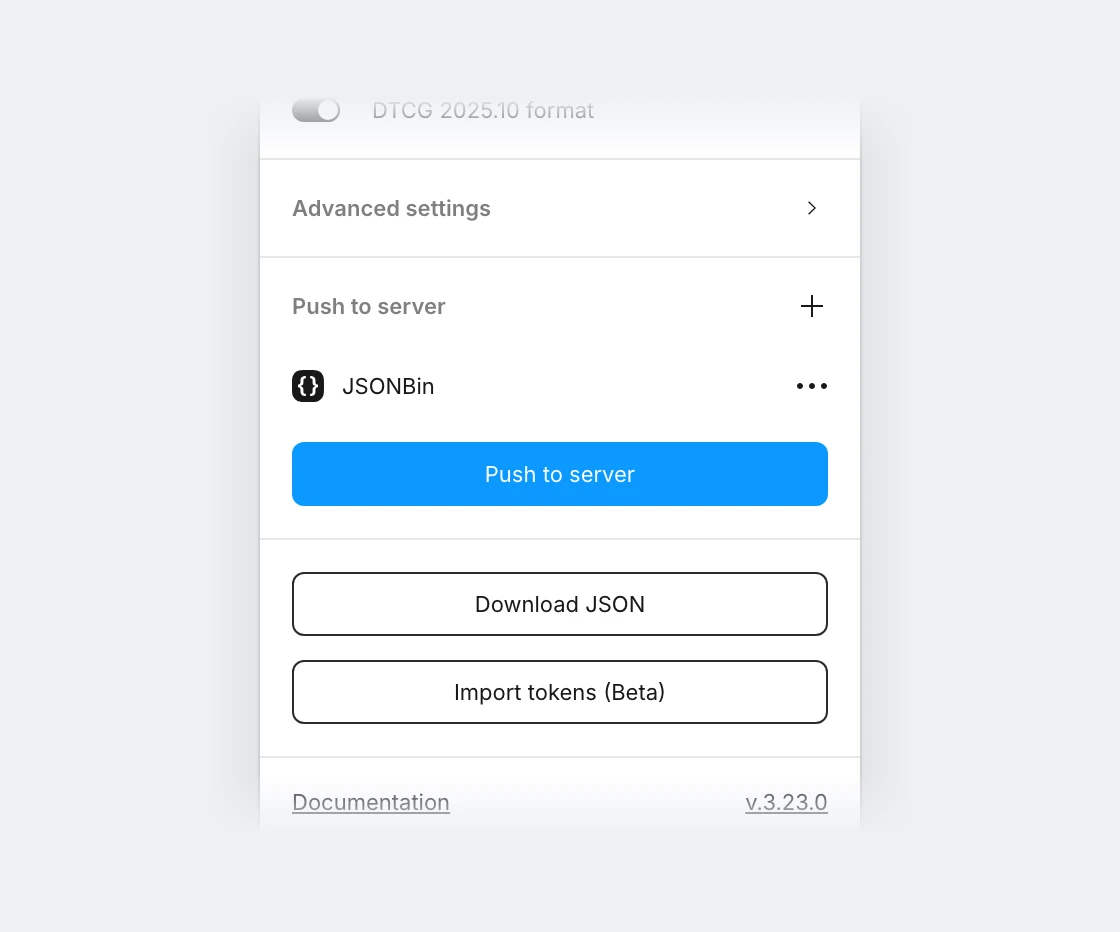
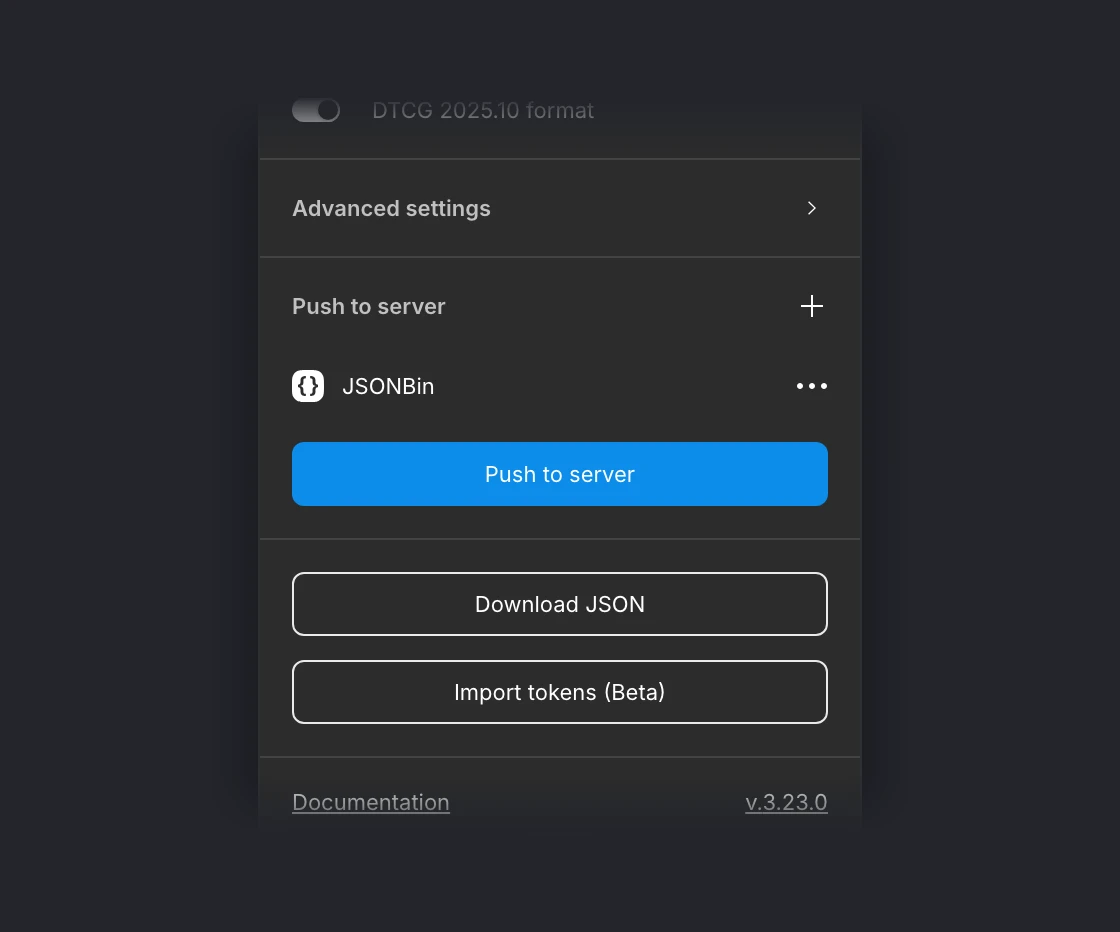
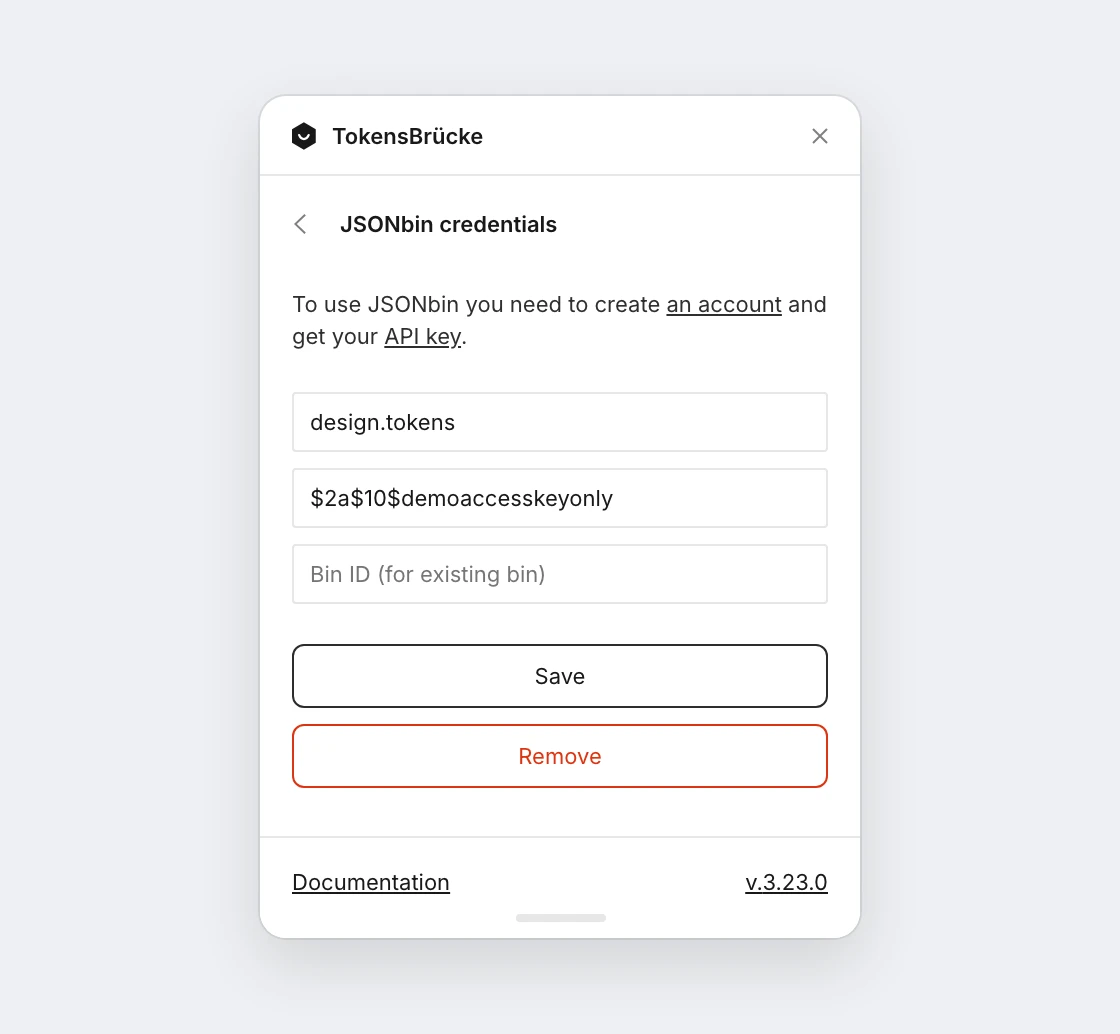
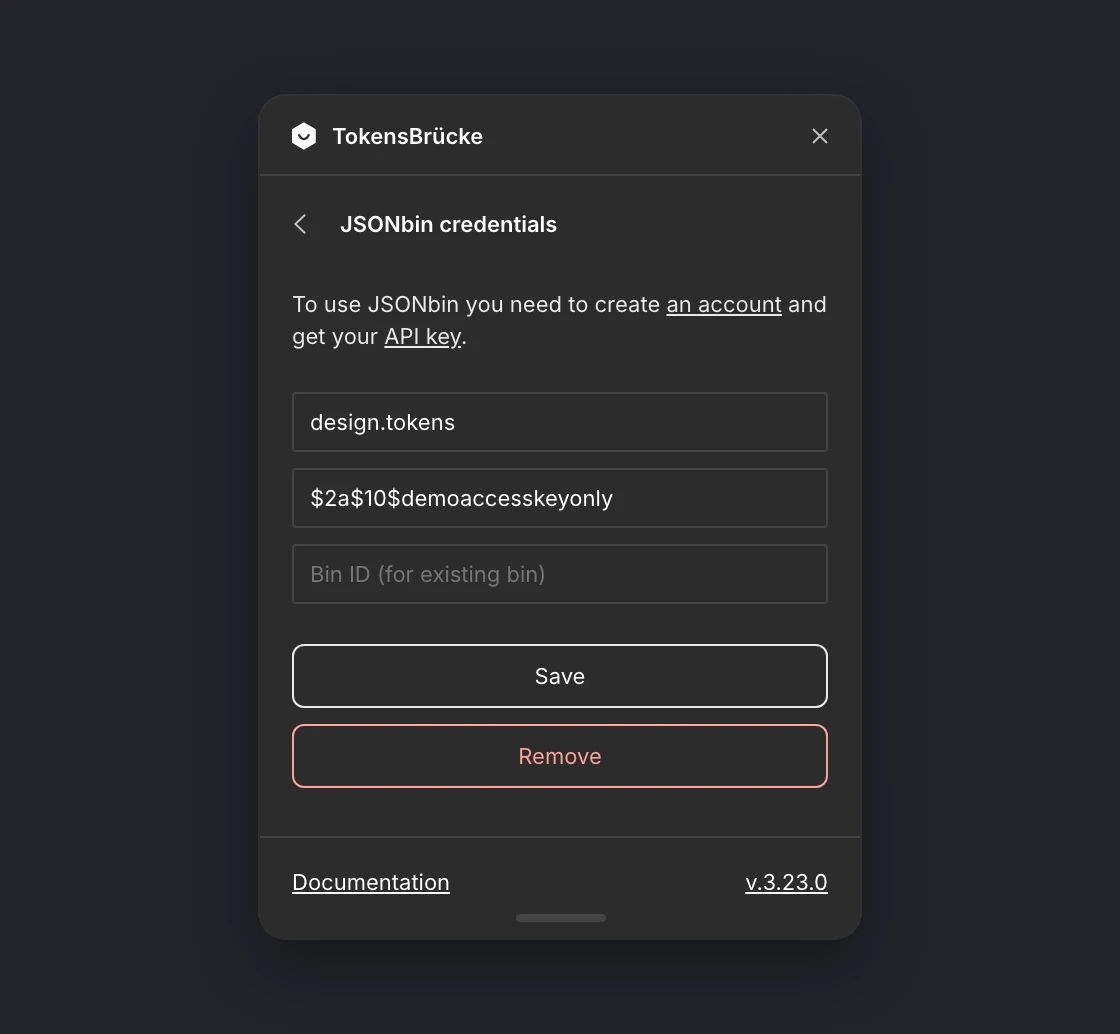
JSONBin
Section titled “JSONBin”- Open JSONBin and create an account.
- Copy your Master key from the API keys page into the
Master keyfield. The plugin sends it asX-Master-Key, so an access key doesn’t work here. - Add a name for the bin.
- Leave
Bin IDempty to create a new bin on the first push. The plugin saves the new bin’s ID, so later pushes update the same bin. To use an existing bin, paste its ID.
GitHub
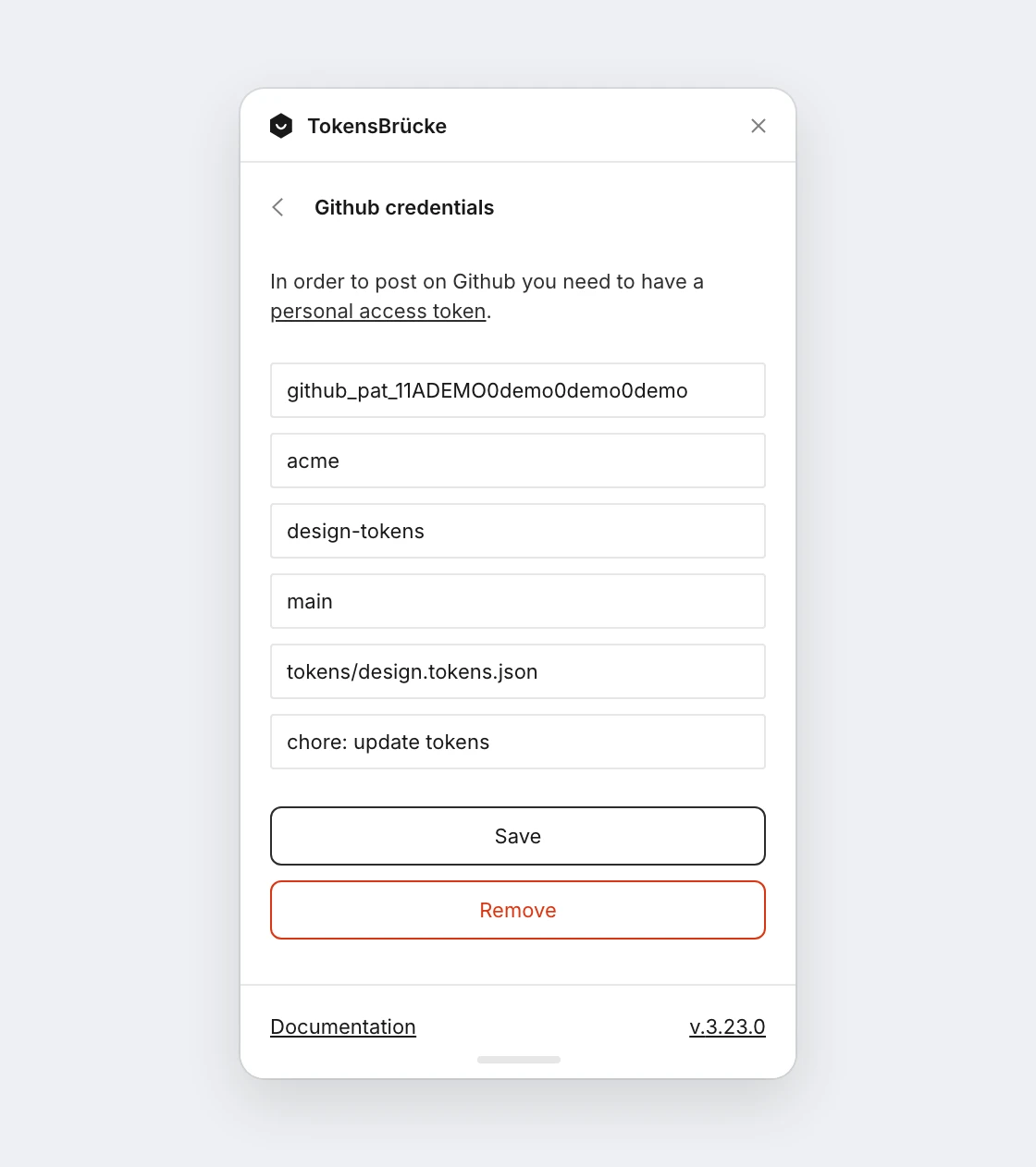
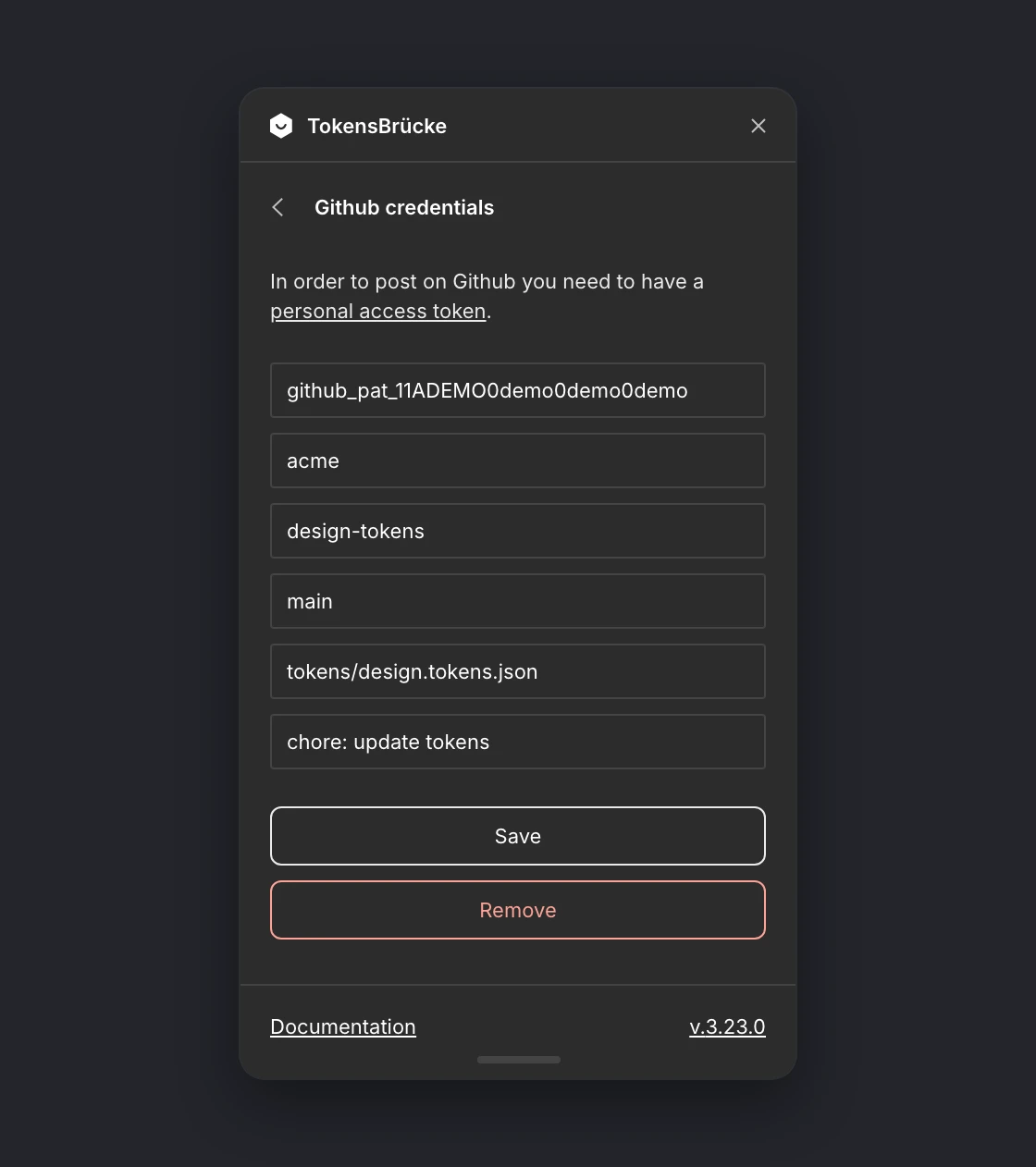
Section titled “GitHub”- Create a fine-grained personal access token with Contents: Read and write for the repository (a classic token with
reposcope works too). TheCreate token ↗link in the form opens that page. - Repository:
owner/repository, or paste the repository URL from your browser. A URL that points at a branch (…/tree/develop) fills in the branch too. - Branch: it must already exist.
- File path: the path of the file in the repository, e.g.
tokens/design.tokens.json. If the file doesn’t exist, it will be created. If the file exists, it will be overwritten. - Personal access token: paste the token.
- Under More options you can set a commit message. It defaults to
Update tokens.
Splitting into several files. If Split collections into separate files or Split modes into separate files is enabled in the advanced settings, the file path field is labelled Folder and every file is written into it in a single commit — e.g.
tokens→tokens/Colors.tokens.json, ortokens/Colors/Light.tokens.jsonwhen splitting by mode. The ⓘ shows an example path. To leave some collections out of the push, see Collections to push.
GitHub PR
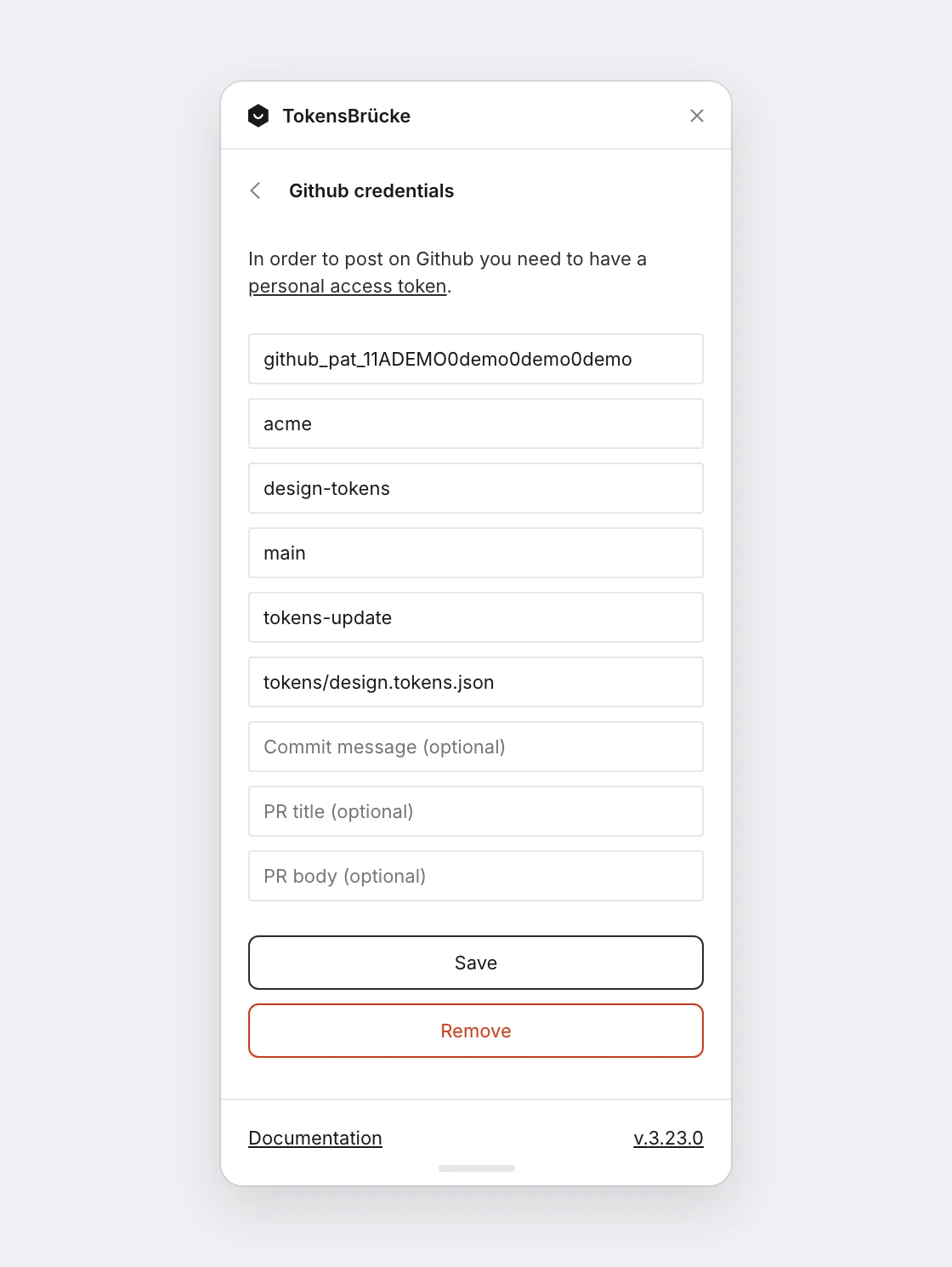
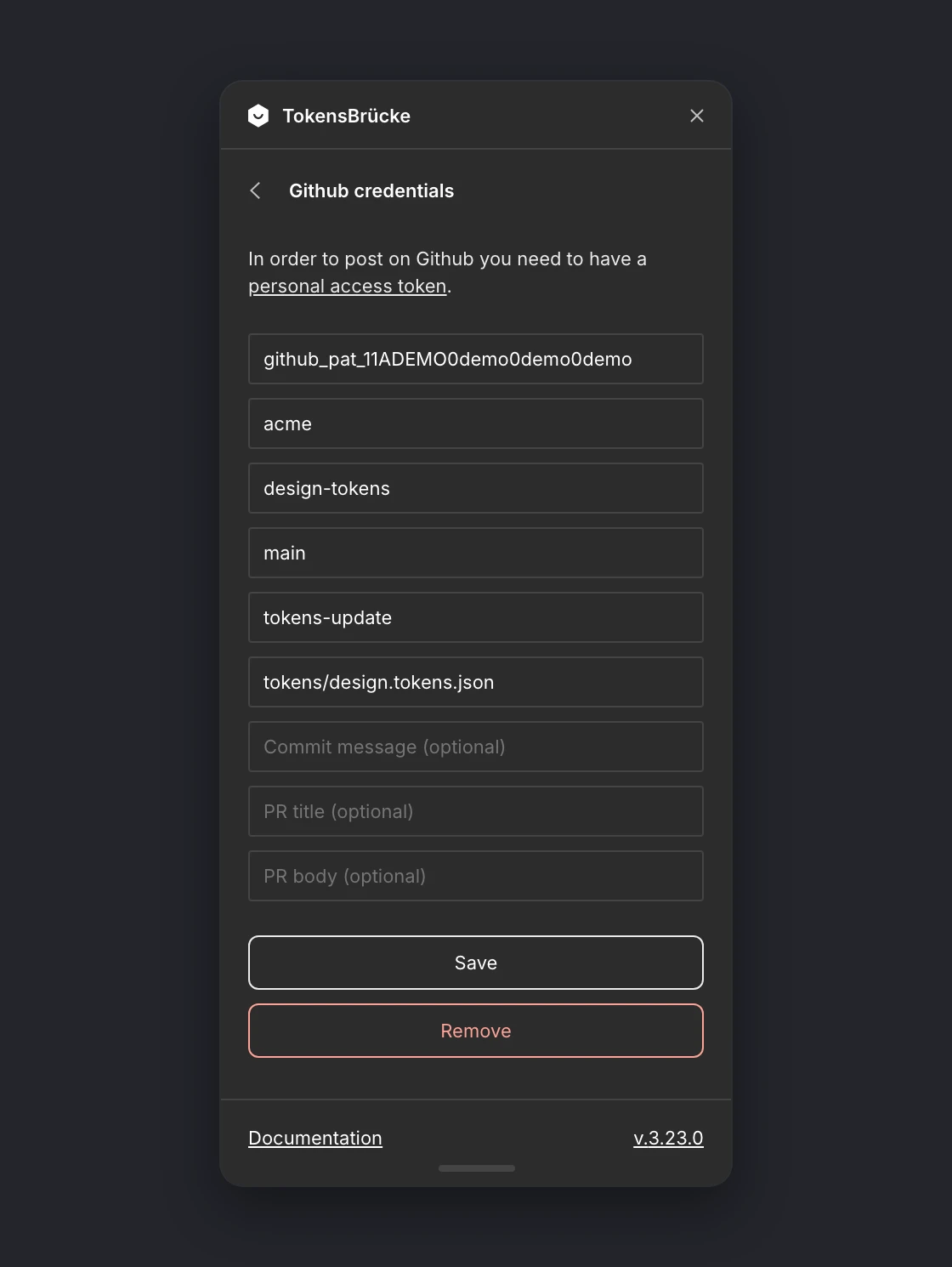
Section titled “GitHub PR”Instead of committing to a branch directly, the plugin commits the tokens to a separate branch and opens a pull request. Repository, file path and token work the same as for the GitHub server; the token also needs Pull requests: Read and write. The other fields:
- Base branch (required). The branch the pull request targets, e.g.
main. - Pull request branch (optional, under More options). The branch the tokens are committed to. Defaults to
tokens-bruecke/update-tokens. It is reset to a new commit on top of the base branch on every push, so don’t commit anything else to it. The form doesn’t accept the base branch here. - Pull request title (optional). Defaults to
chore(tokens): update tokens. - Pull request description (optional). If you leave it empty, the plugin won’t add a body to the PR.
If a pull request from that branch is already open, the plugin updates it instead of opening a new one. After a push, the toast shows an Open Pull Request link.
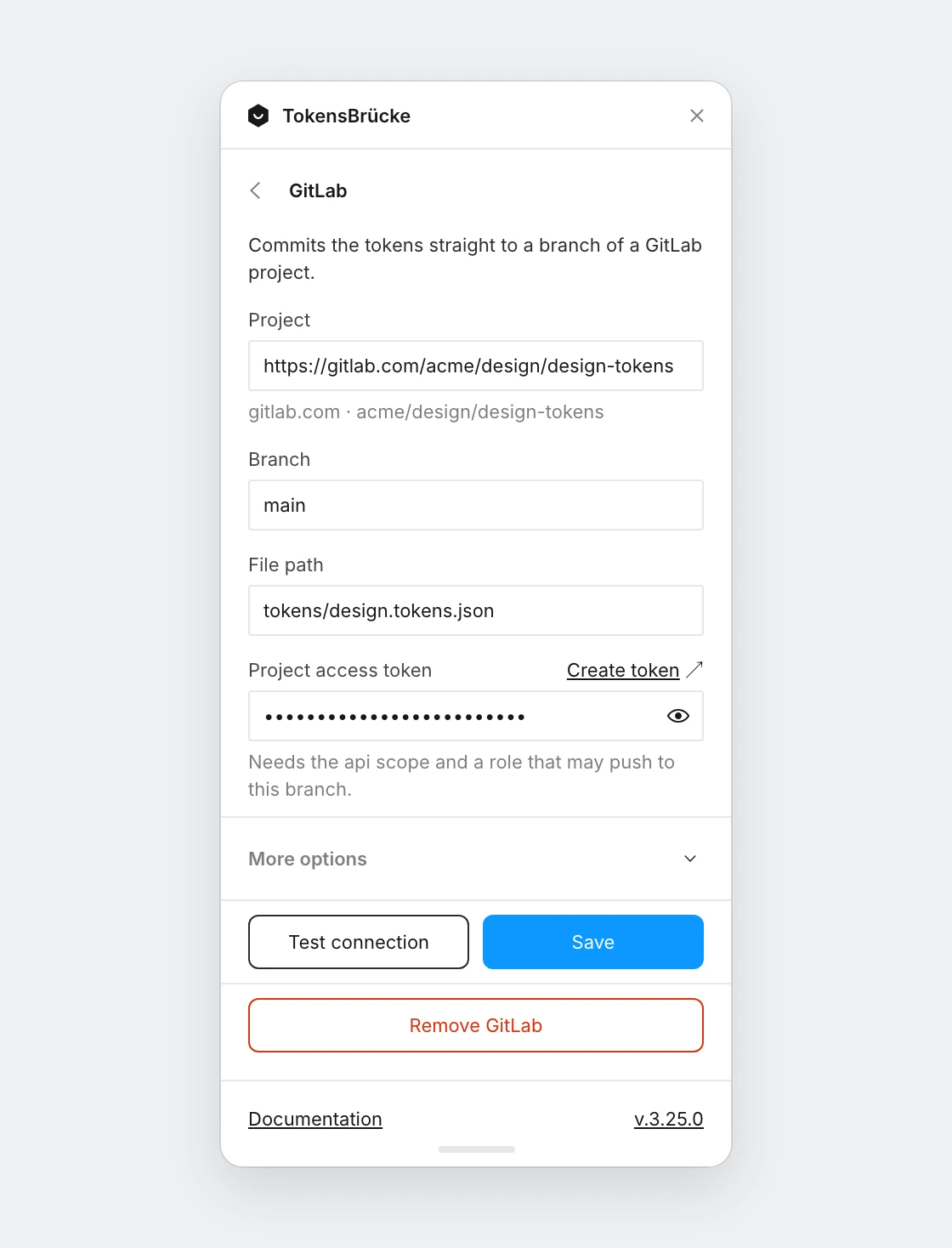
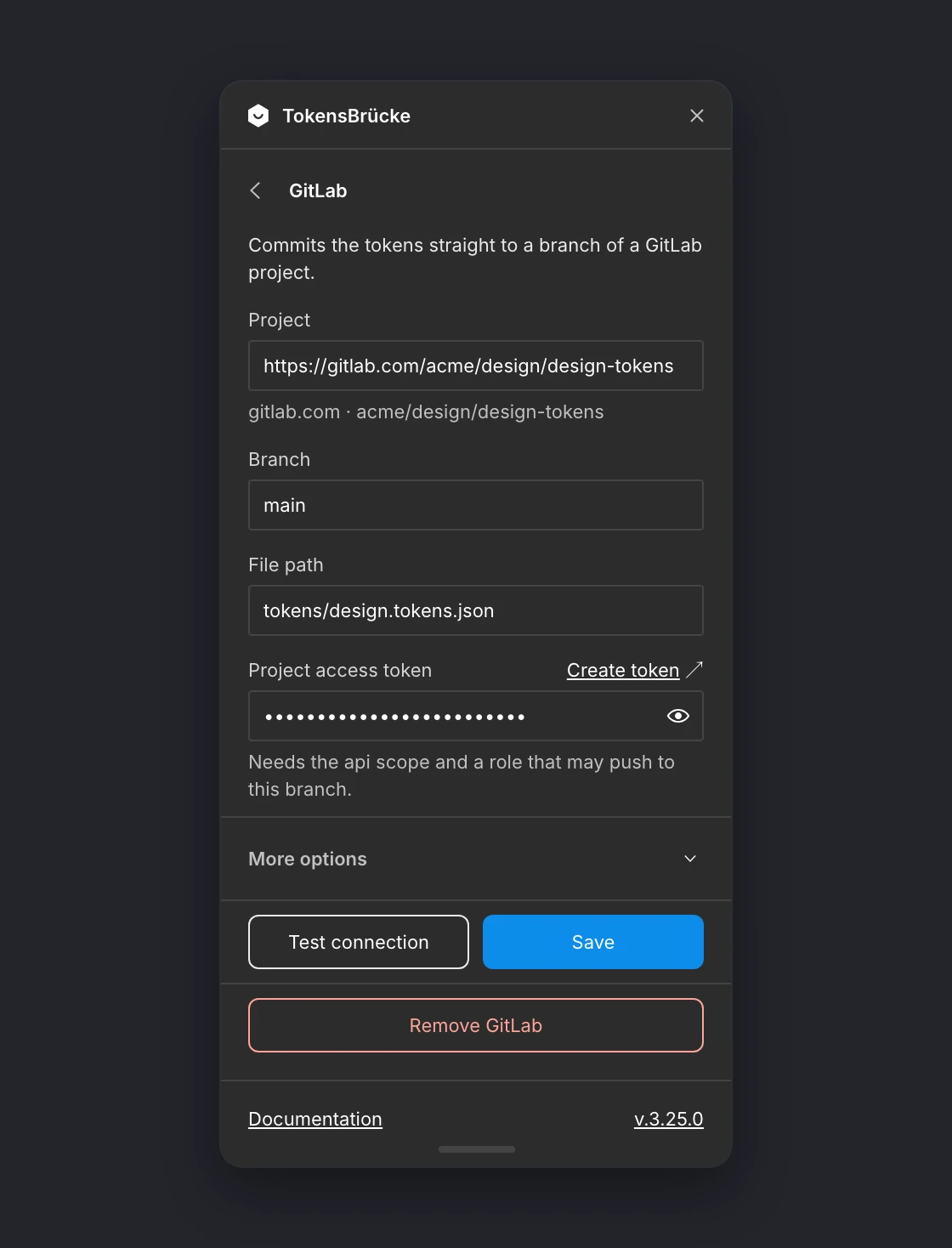
GitLab
Section titled “GitLab”- You need a project access token with
apiscope. To push to a protected branch such asmain, the token needs the Maintainer role; otherwise use the GitLab MR server, which opens a merge request instead. Once the project is filled in, theCreate token ↗link opens the project’s token settings. - Project: paste the project URL from your browser, e.g.
https://gitlab.acme.com/acme/frontend/design-systemfor a self-managed GitLab, or writegroup/projectfor gitlab.com. Subgroups and the SSH clone URL work too, and a URL that points at a branch (…/-/tree/develop) fills in the branch. The ⓘ next to the label shows how the plugin read host and project. - Branch: it must already exist.
- File path: the path of the file in the repository, e.g.
tokens/design.tokens.json. If the file doesn’t exist, it will be created. If the file exists, it will be overwritten. - Project access token: paste the token.
- Under More options you can set a commit message. It defaults to
Update tokens.
Splitting into several files. If Split collections into separate files or Split modes into separate files is enabled in the advanced settings, the file path field is labelled Folder and every file is written into it in a single commit — e.g.
tokens→tokens/Colors.tokens.json, ortokens/Colors/Light.tokens.jsonwhen splitting by mode. The ⓘ shows an example path. To leave some collections out of the push, see Collections to push.
GitLab MR
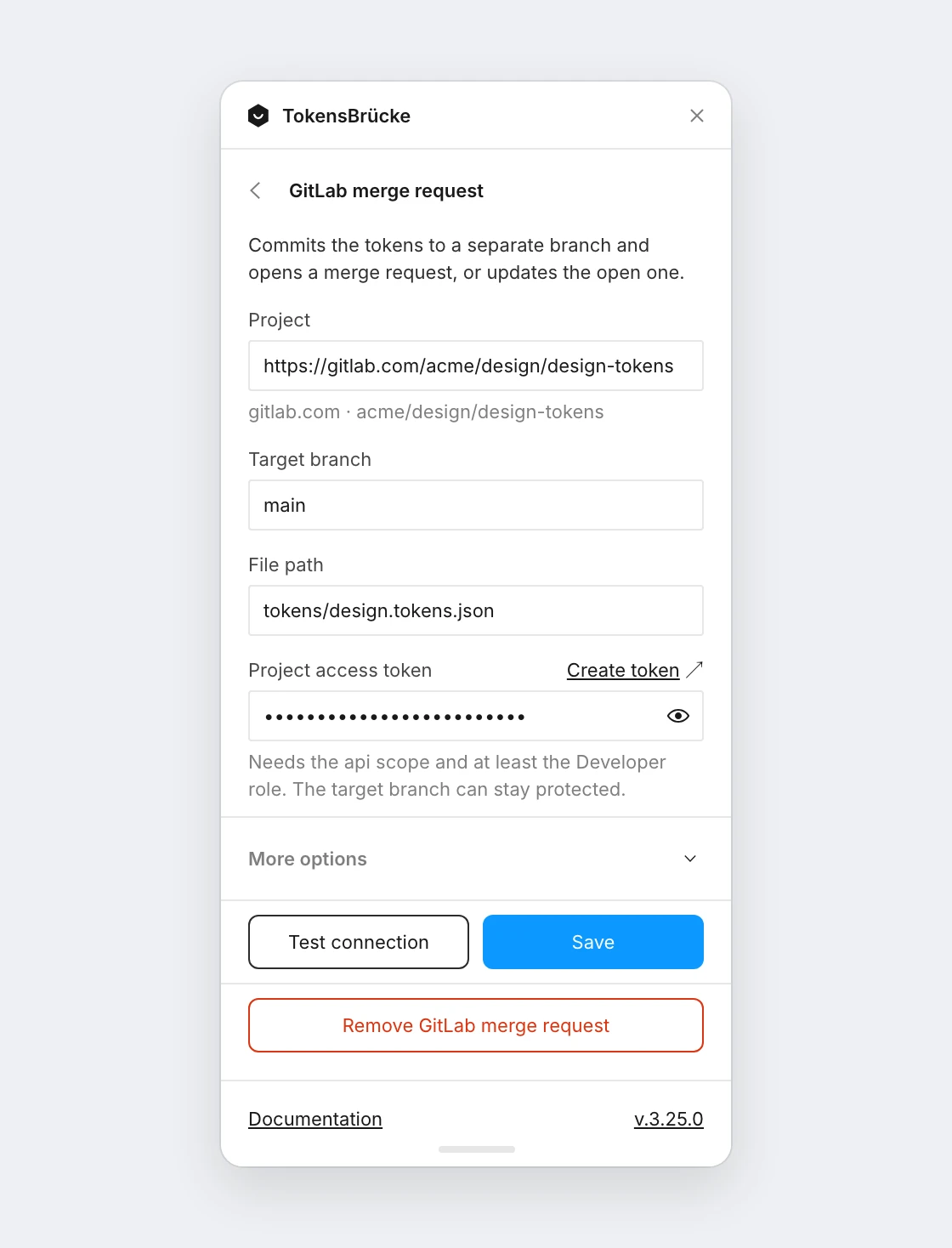
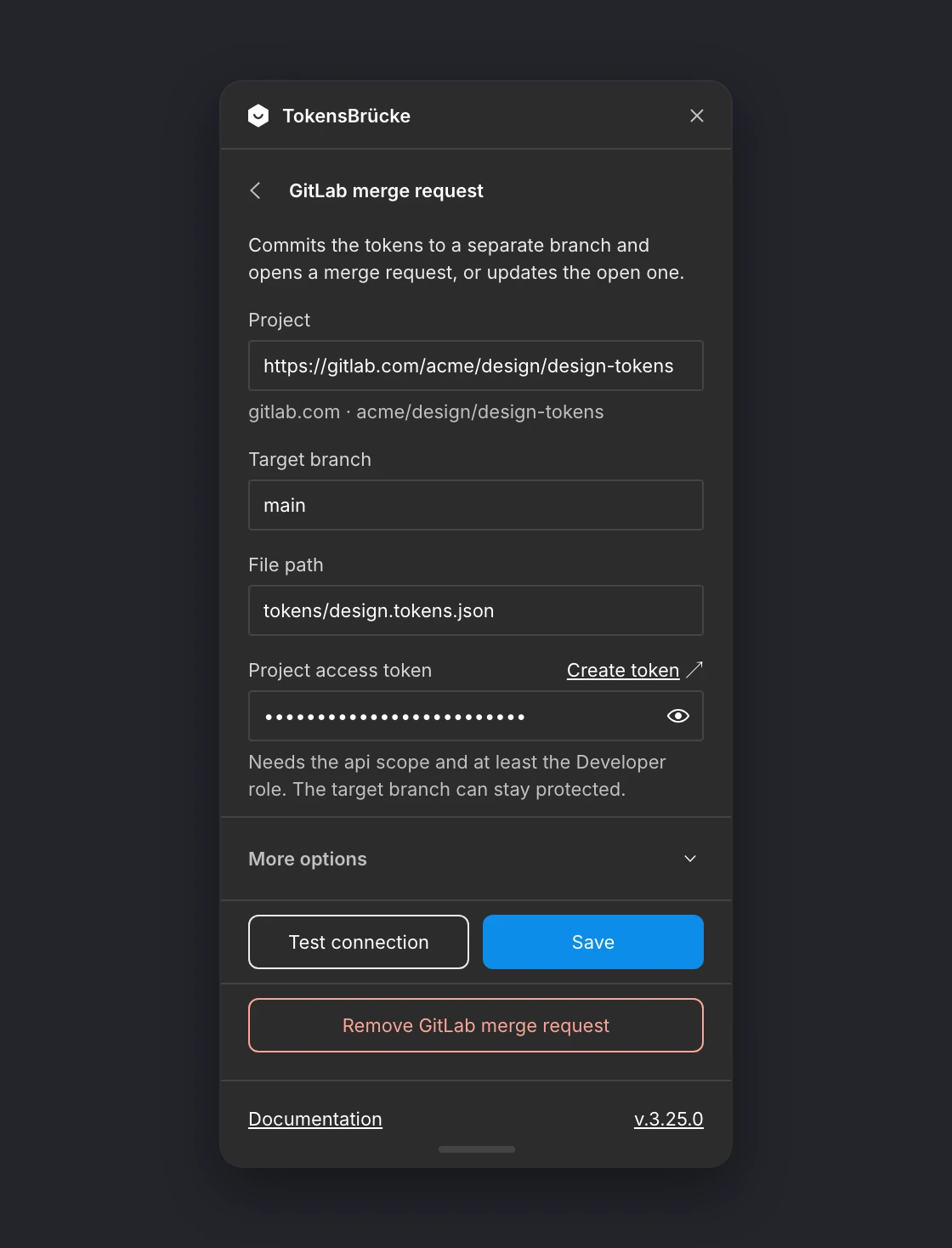
Section titled “GitLab MR”Instead of committing to a branch directly, the plugin commits the tokens to a separate branch and opens a merge request. Use it when the target branch is protected or changes should be reviewed. Project and file path work the same as for the GitLab server. The other fields:
- Target branch (required). The branch the merge request targets, e.g.
main. It must already exist; it can stay protected. - Project access token (required). A token with
apiscope and at least the Developer role, which may push to the merge request branch and open merge requests. - Merge request branch (optional, under More options). The branch the tokens are committed to. Defaults to
tokens-bruecke/update-tokens. It is created on the first push and reset to a new commit on top of the target branch on every push, so don’t commit anything else to it, and don’t protect it. The form doesn’t accept the target branch here. - Commit message (optional). Defaults to
Update tokens. - Merge request title (optional). Defaults to
chore(tokens): update tokens. - Merge request description (optional). If you leave it empty, the merge request has no description.
If a merge request from that branch into the target branch is already open, the plugin updates it instead of opening a new one. After a push, the toast shows an Open Merge Request link.
Collections to push
Section titled “Collections to push”While the tokens are split into separate files and a GitHub, GitHub PR, GitLab or GitLab MR server is set up, a Collections row appears under the servers when the file has more than one collection. It lists the collections that are pushed; click it to check or uncheck them. All collections are checked by default, and a collection added to the file later is checked too.
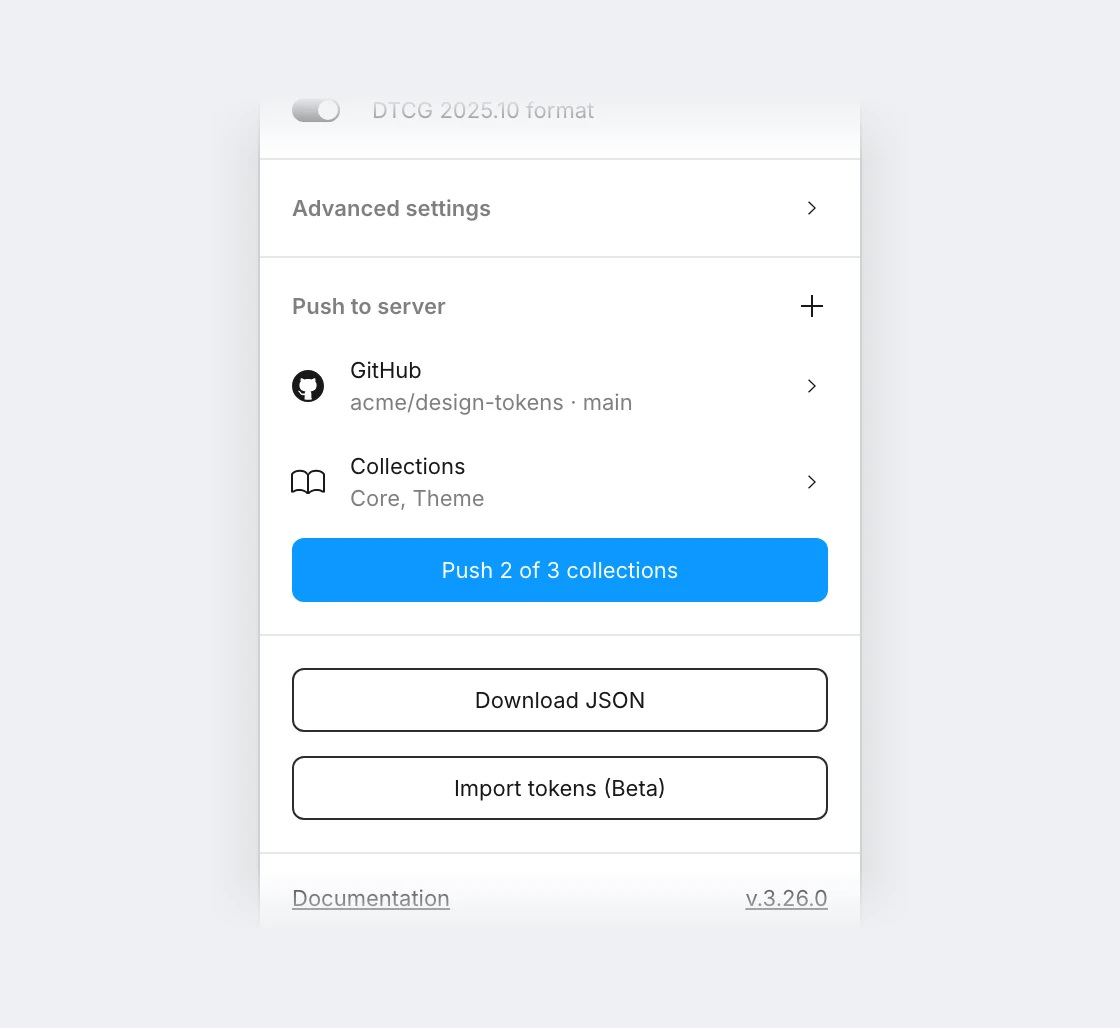
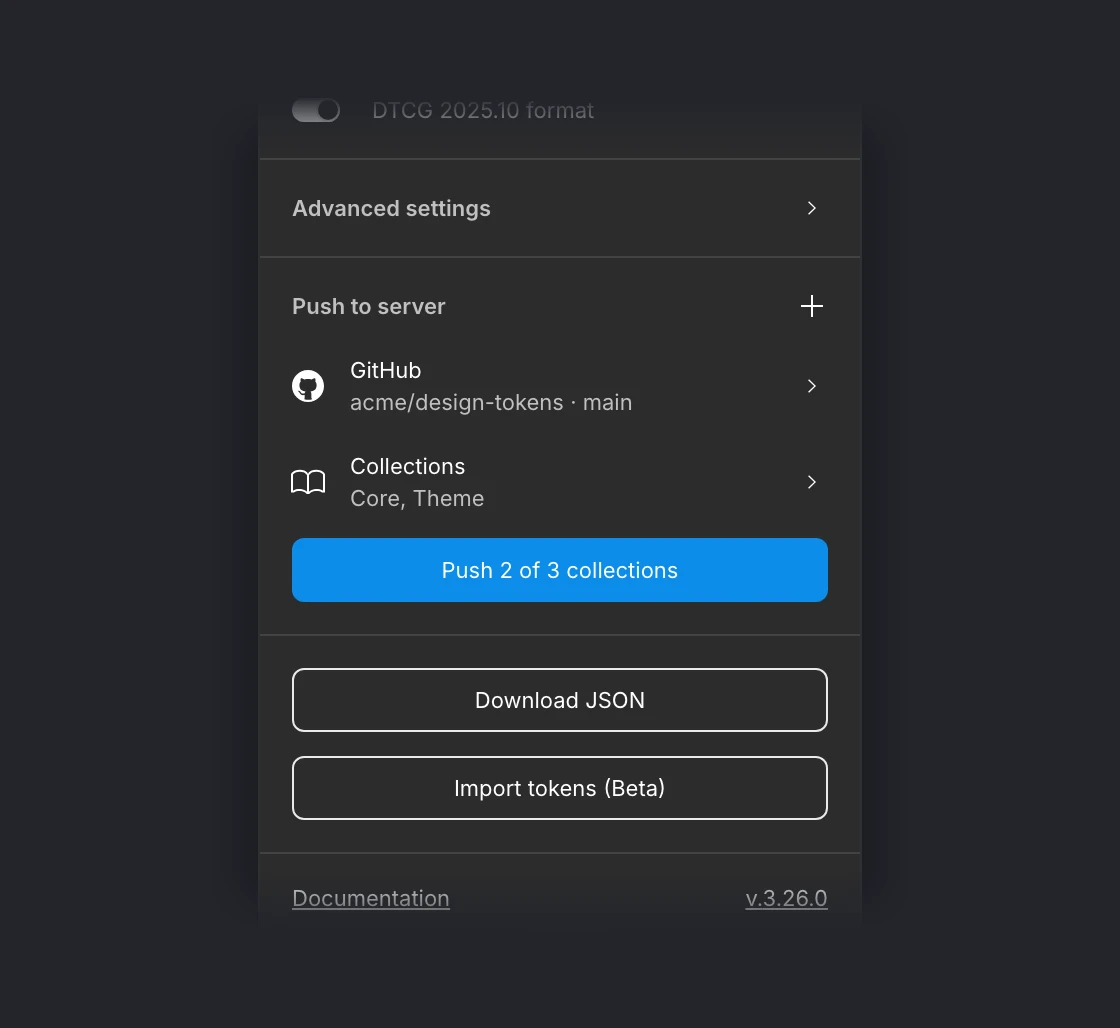
These servers only commit the files of the checked collections. The files of unchecked collections are not deleted: they stay in the repository as they are. This keeps a commit, pull request or merge request to the collections you changed. When some collections are unchecked, the push button says how many are pushed, e.g. Push 2 of 3 collections.
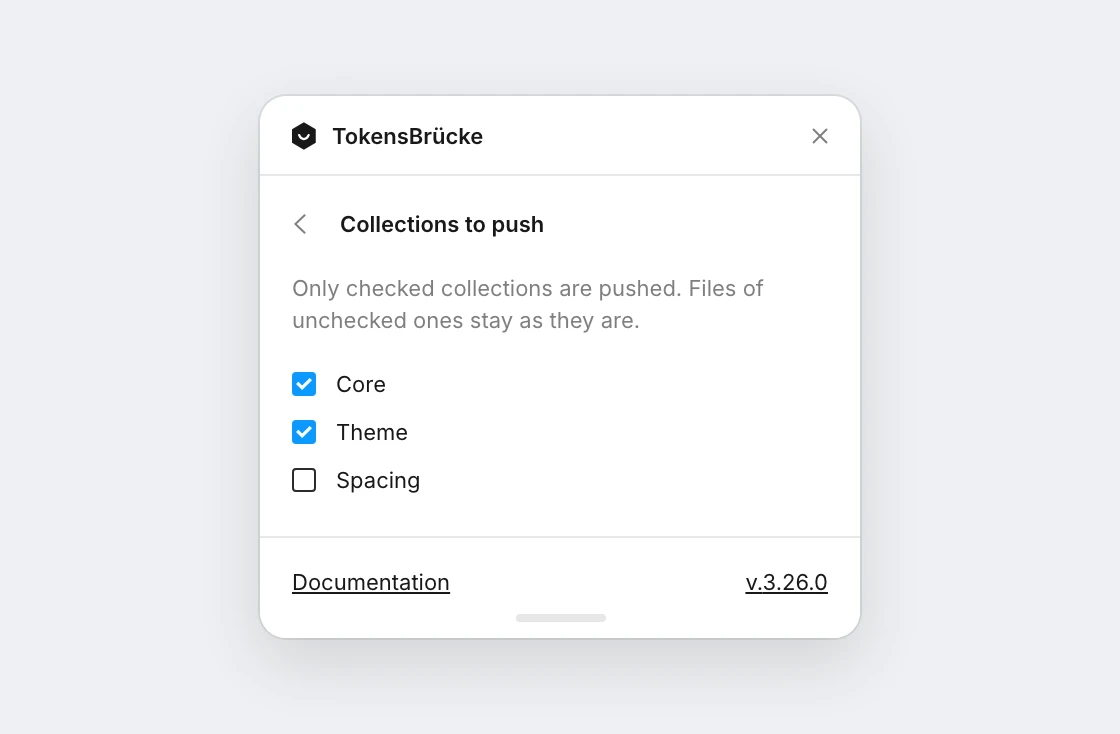
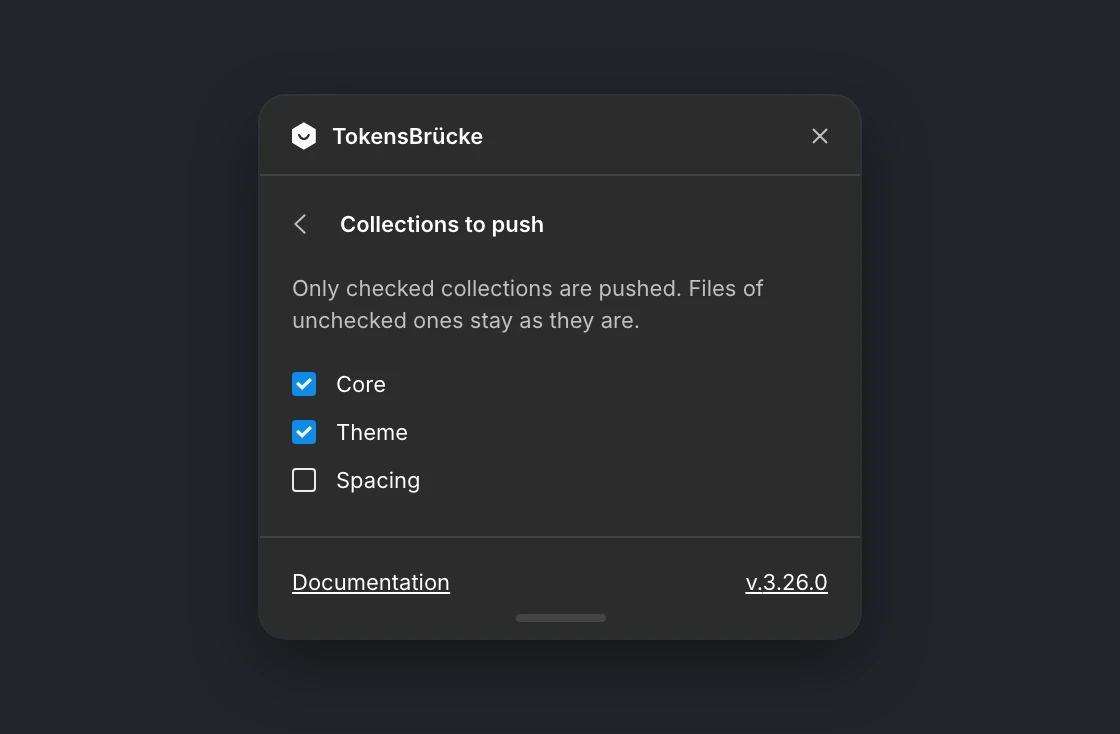
The selection is saved in the profile. Download JSON, JSONBin, custom servers and the CLI always include every collection. With Omit collection names on, the output has no collection groups, so the row is hidden and every file is pushed.
Custom server
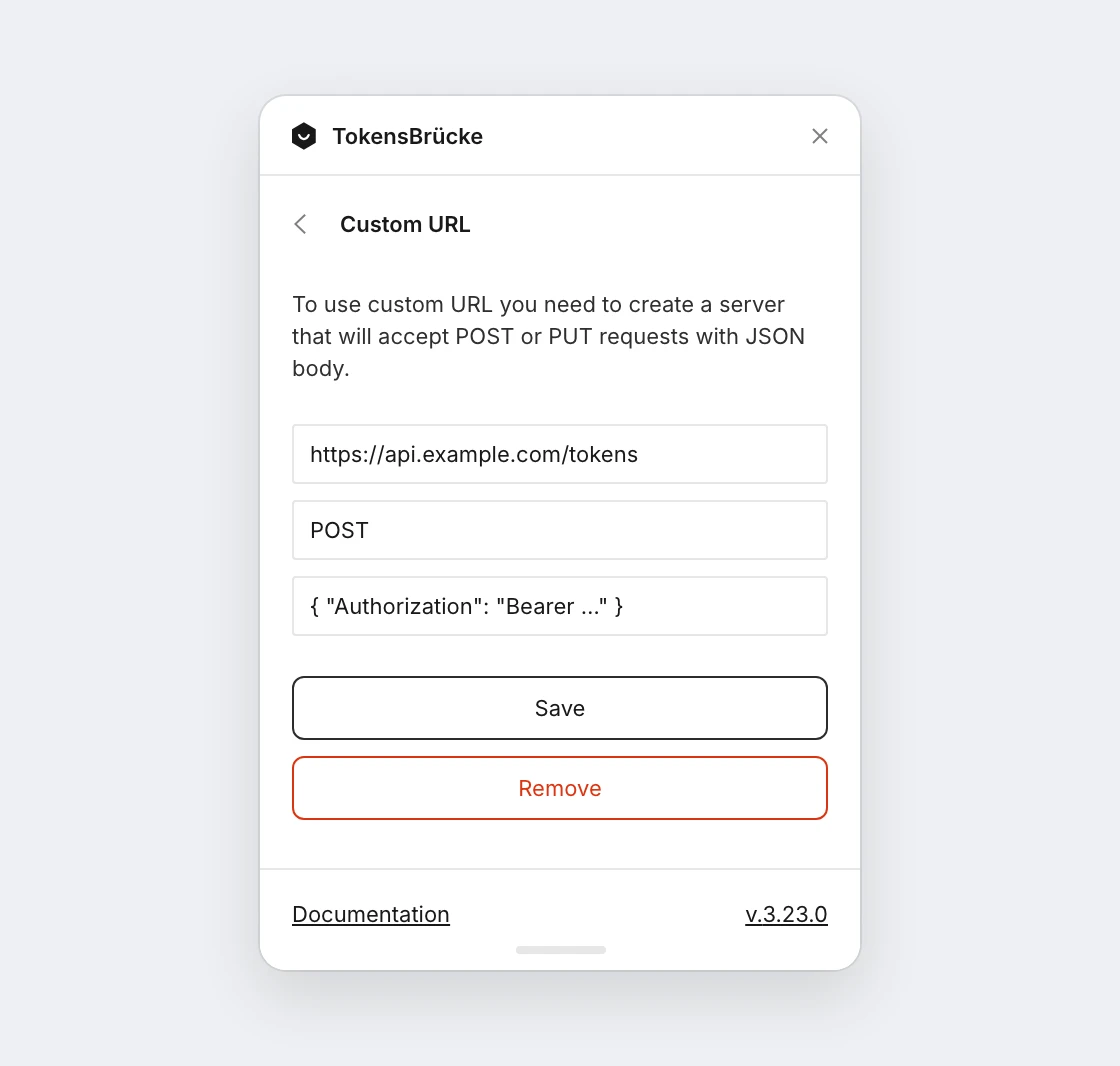
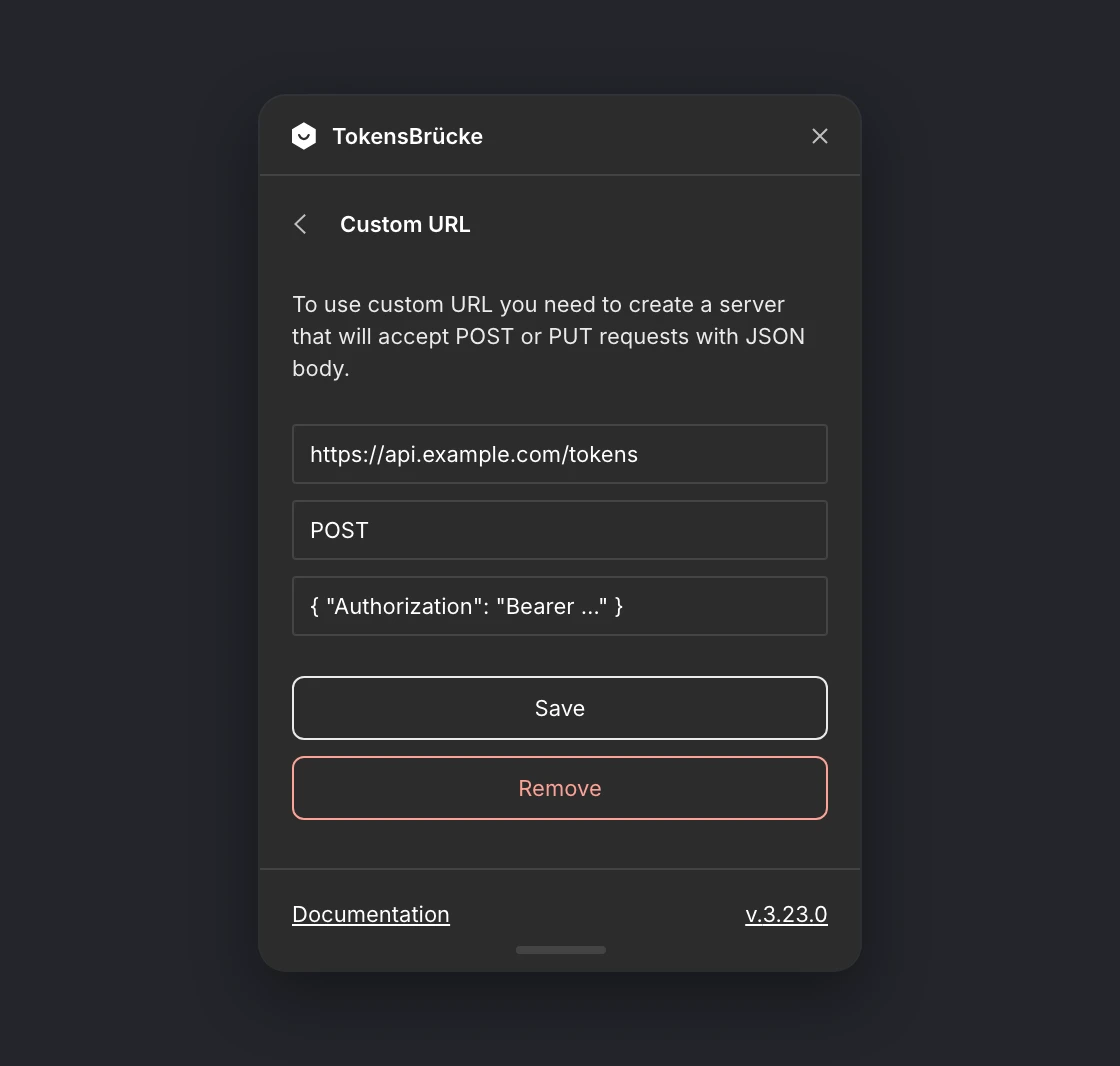
Section titled “Custom server”There is a possibility to connect a custom server. In order to do that you need to specify an Endpoint URL starting with https:// (or http://), a Method (POST or PUT, by default it’s POST) and optional Headers, written as a JSON object, e.g. {"Authorization": "Bearer <token>"}. The form checks the URL and the headers when you leave the field.
JSONBin and custom servers always receive the whole JSON in one request: the split into separate files settings only apply to downloads, the CLI and the Git servers.