

Output and window
Show output
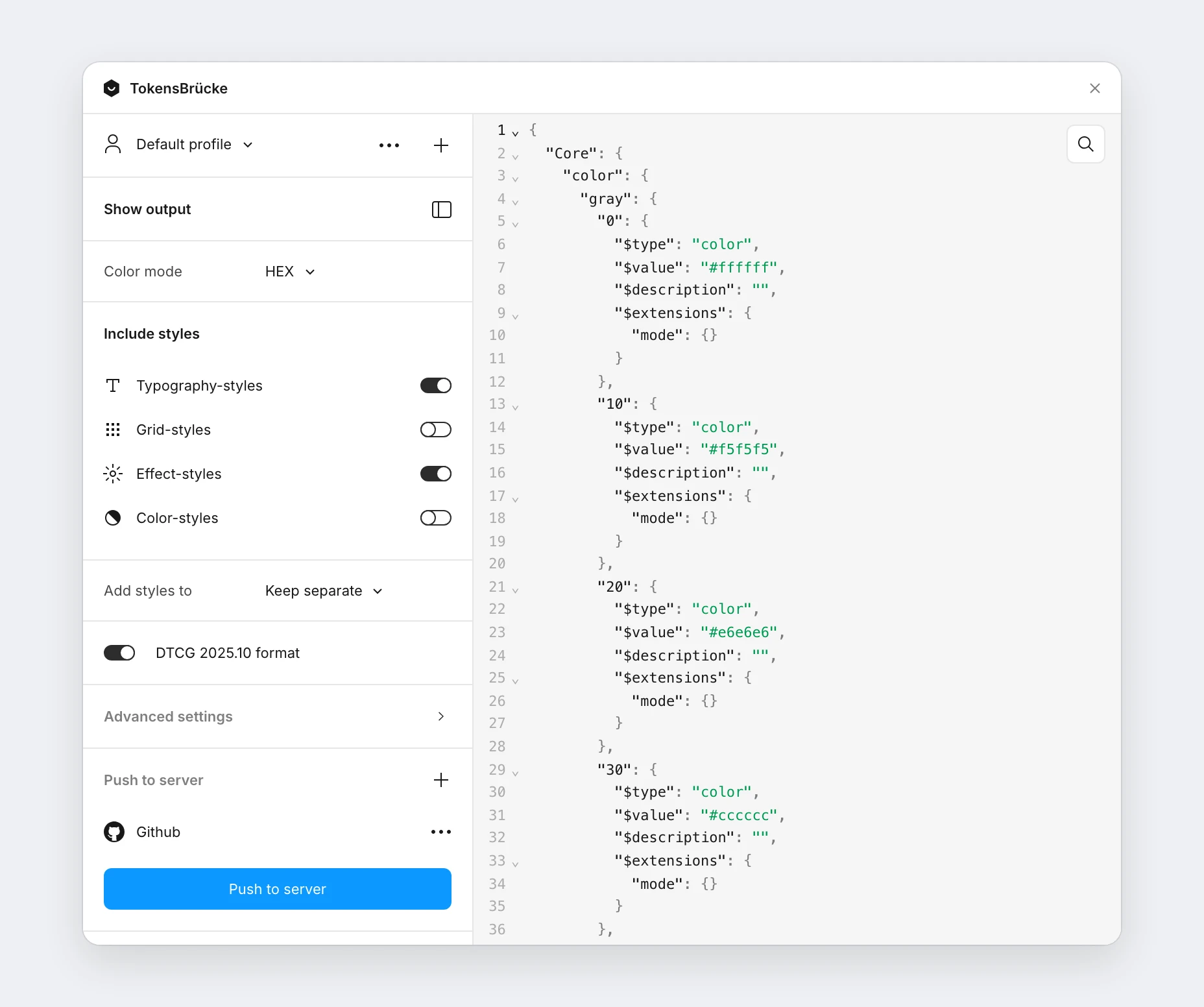
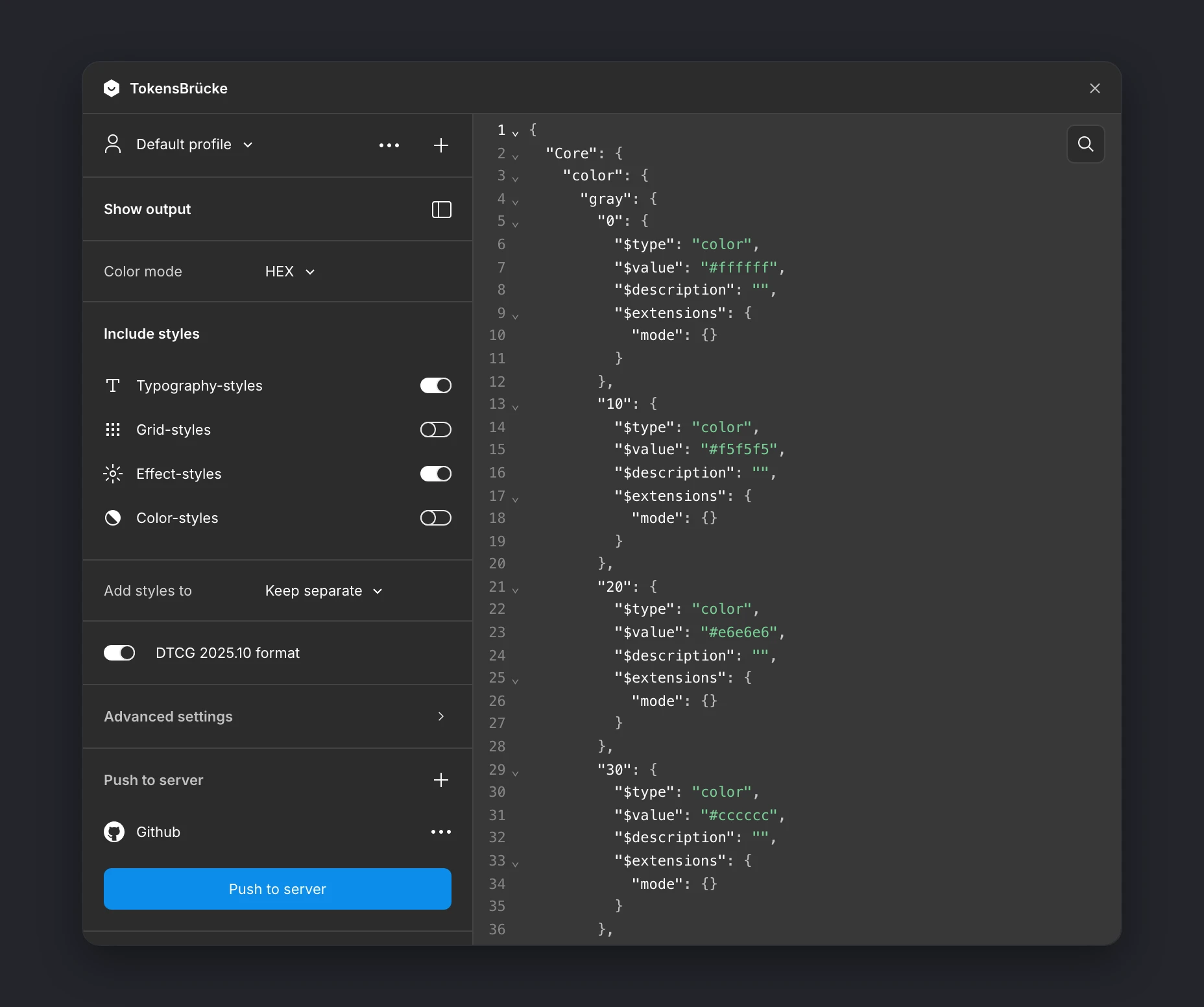
Section titled “Show output”If you want to see the generated JSON, you can enable the Show output option. The plugin will show the JSON in a code preview sidebar with:
- Syntax highlighting that matches the Figma theme
- Line numbers and code folding for collapsing groups
- Search with match highlighting
- A
Copybutton to copy the whole JSON to the clipboard - A stats bar showing the number of tokens, groups, lines, and the file size
The output doesn’t update automatically, in order to optimize the performance. So, if you want to see the updated JSON, you need to click the Update button.
Plugin window height
Section titled “Plugin window height”The plugin window auto-fits the height of its content, but you can adjust it manually using the resizer handle at the bottom of the settings view.
- Drag the handle up or down to set a custom height. The minimum is
360pxand the maximum is the current content height — you can’t grow the window beyond what’s actually there. - Double-click the handle to reset back to auto-fit. The window snaps to match the content height again.
- Your manual height is preserved while the output preview is open, so you can resize both with and without the preview showing.
In Dev Mode the plugin fills the Inspect panel instead, so there is no resizer.