

Profiles
A profile holds a complete set of export settings and server configurations. Keep one per platform or repository, and share one in the Figma file so designers and developers export the same tokens.
Multiple profiles
Section titled “Multiple profiles”Each profile stores its own settings, so you can switch between different setups without reconfiguring every time. The profile controls are in the header of the settings view:
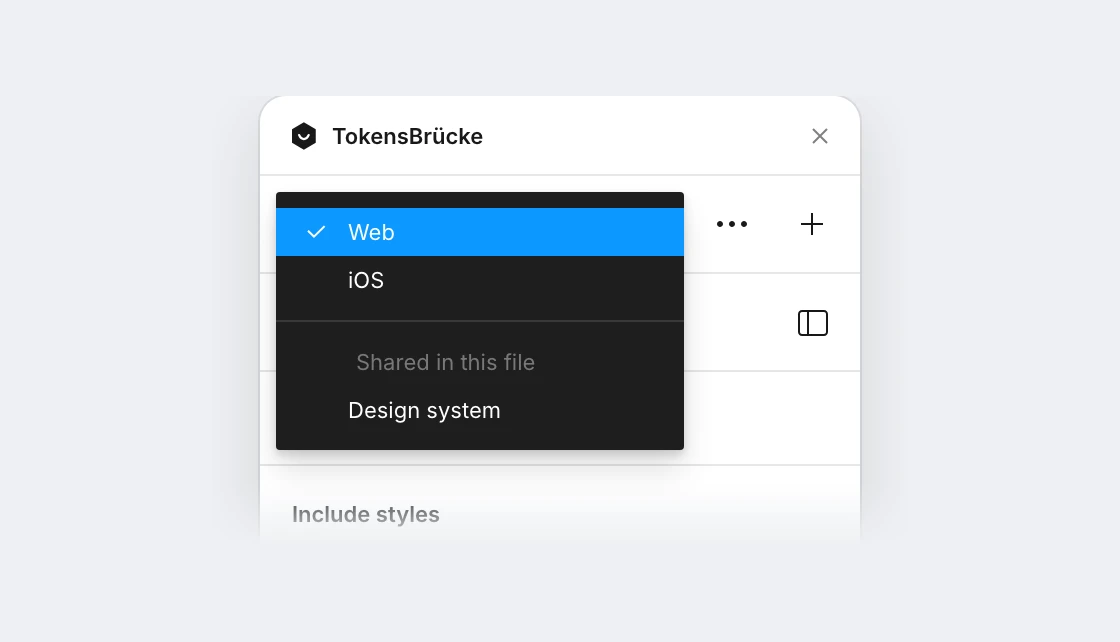
- Profile dropdown — shows the active profile. Click it to switch to another profile.
+button — creates a new profile. Enter a name and click Create. The new profile starts with default settings.⋮button — opens the active profile, where you can rename, share or delete it.
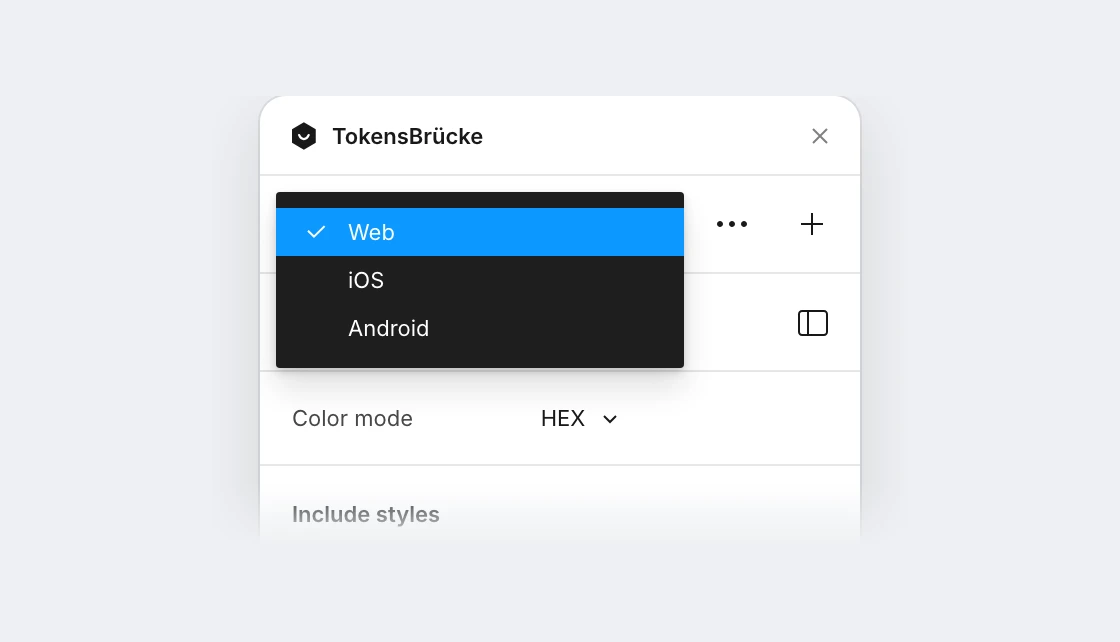
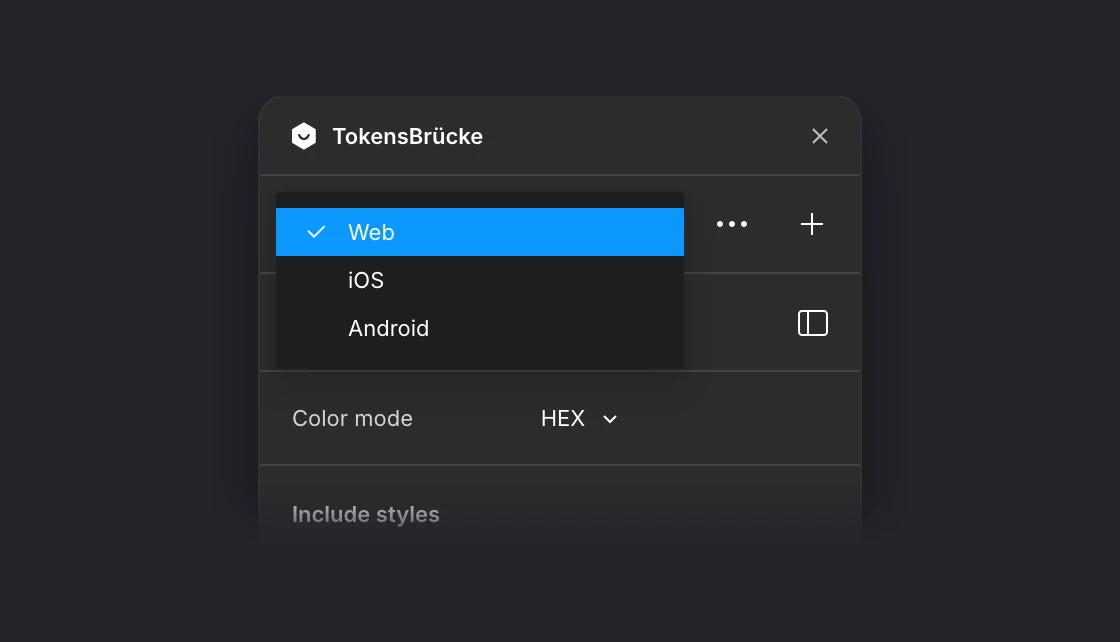
Switching profiles applies that profile’s export options and server credentials right away. The last remaining profile can’t be deleted.
Shared profiles
Section titled “Shared profiles”Profiles are stored on your machine. To hand your settings to others, for example developers in Dev Mode, share the profile in the Figma file.
-
Open the profile with
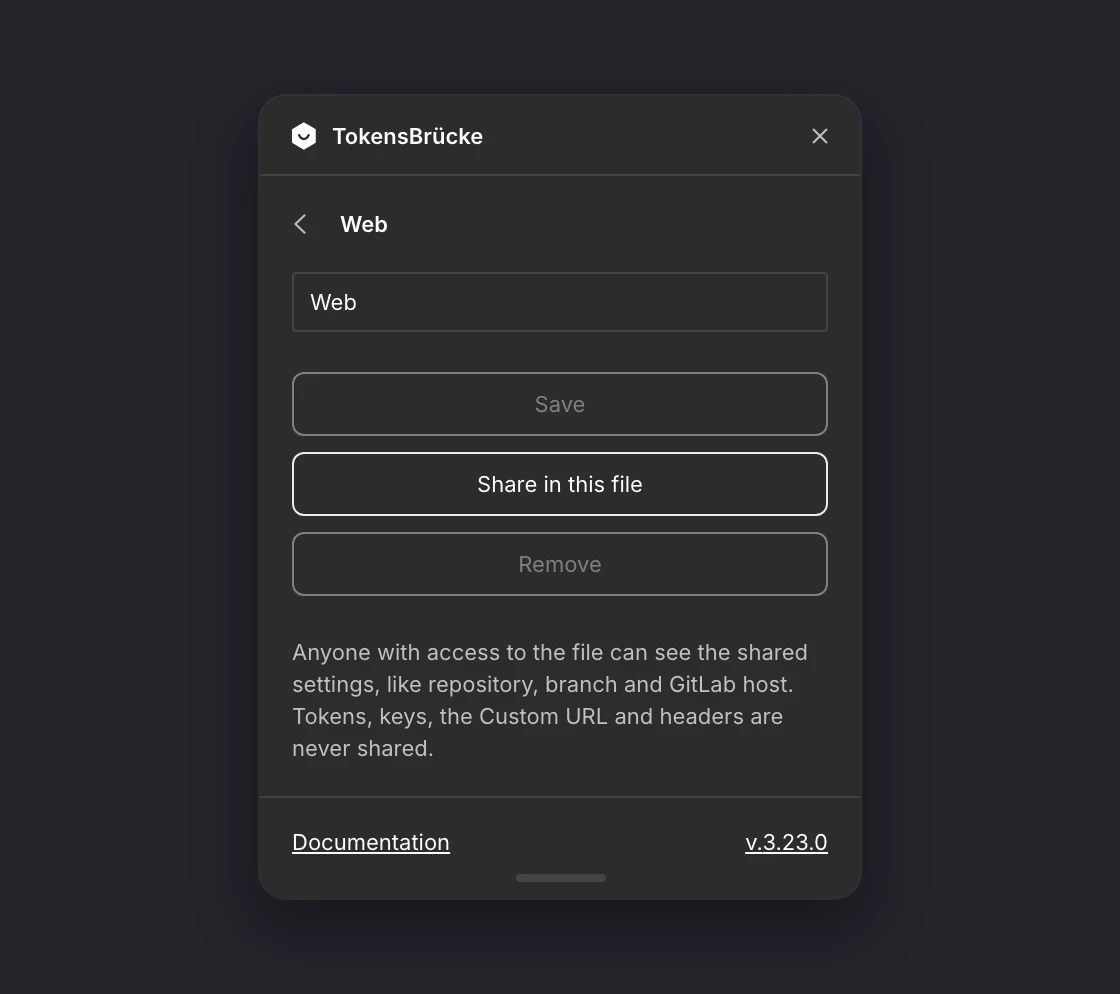
⋮and click Share in this file.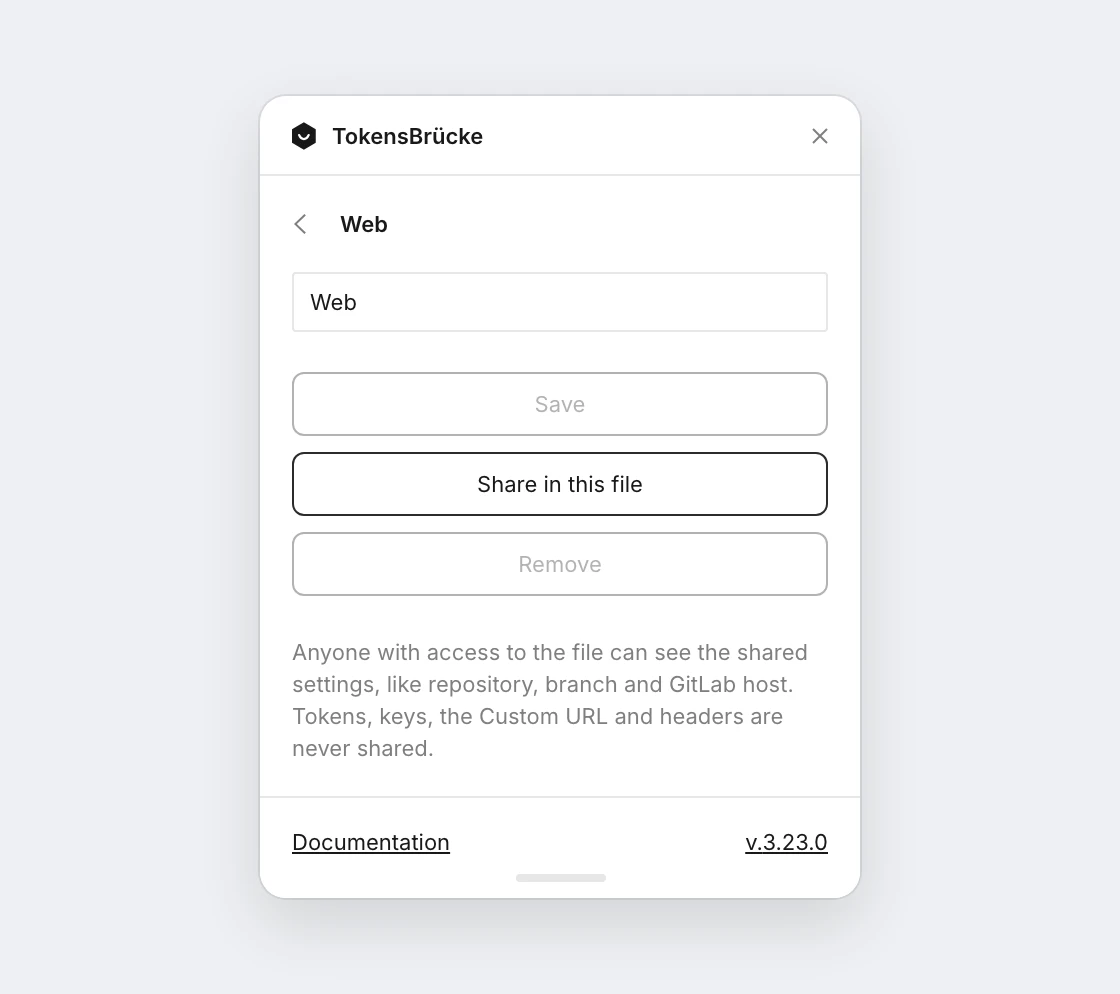
-
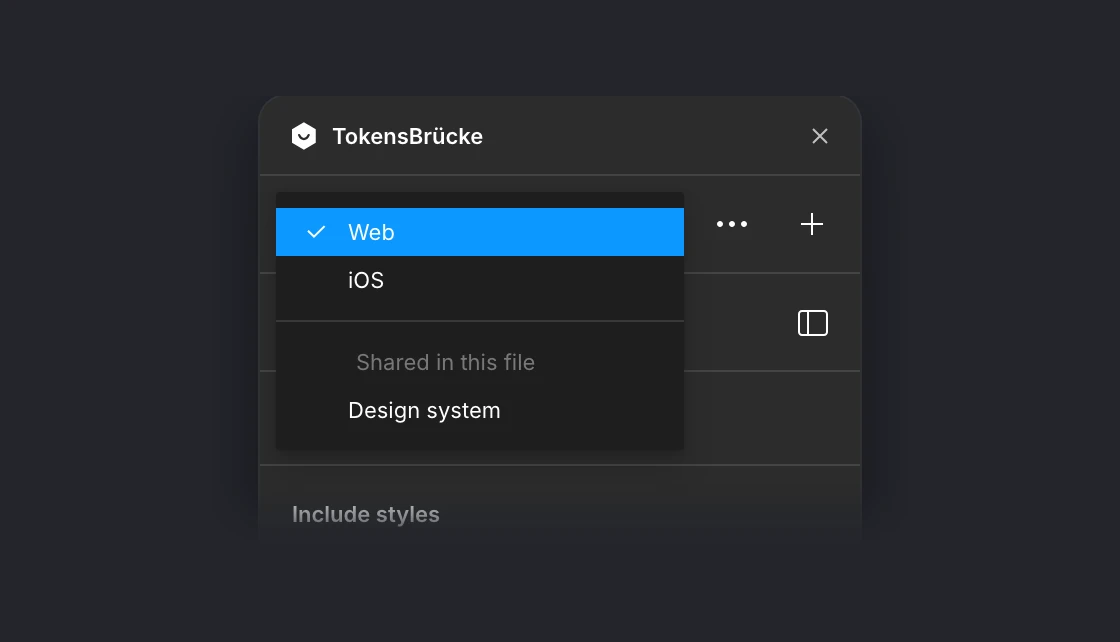
Everyone who runs the plugin on the file sees it in the profile dropdown under Shared in this file. Picking it creates a local copy.
-
Each person adds their own token in the server settings before they push.
What is shared
Section titled “What is shared”The profile is saved in the Figma file without any credentials: tokens, access keys, the Custom URL and its headers are removed, because webhook URLs often carry their secret in the URL. Everything else is shared, including repository, branch, file name and the Custom URL method. Each developer enters the Custom URL themselves; until then that server stays off. A server that only a newer plugin version knows is never shared. An older version doesn’t show it, and keeps it in your profile untouched.
Keeping copies up to date
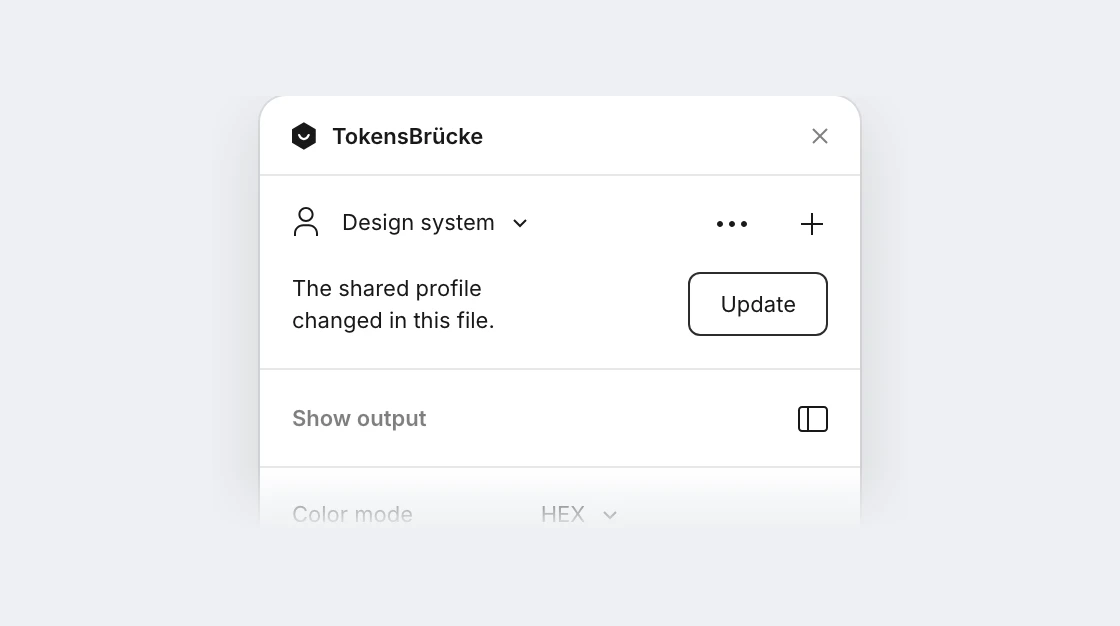
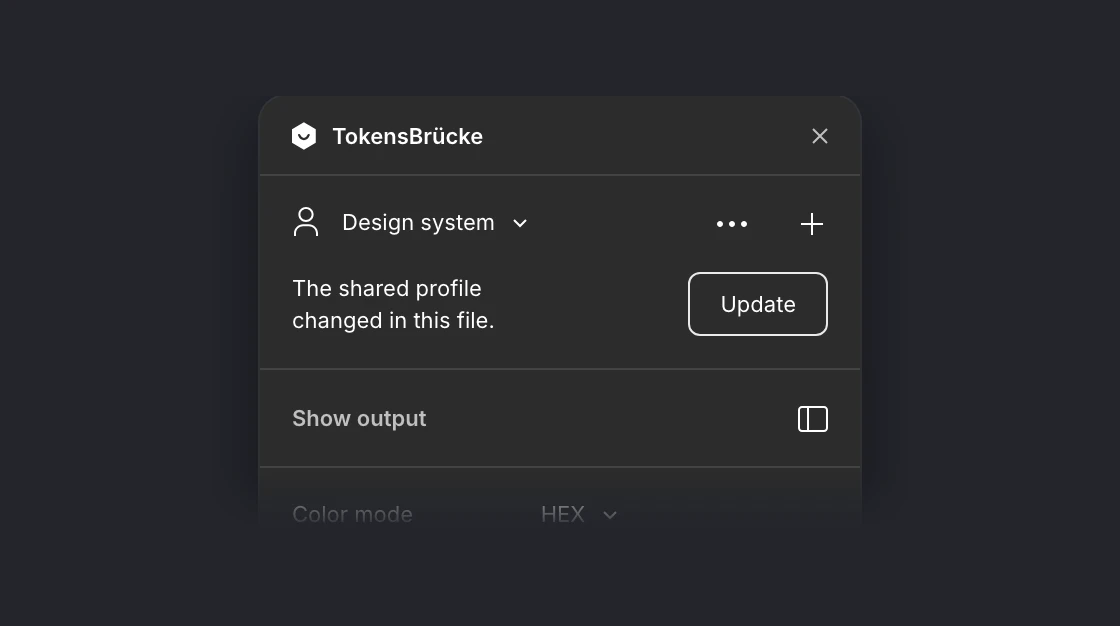
Section titled “Keeping copies up to date”When the shared profile changes, the local copy shows Update. Updating takes the settings from the file and keeps your credentials and profile name.
Changing or stopping a shared profile
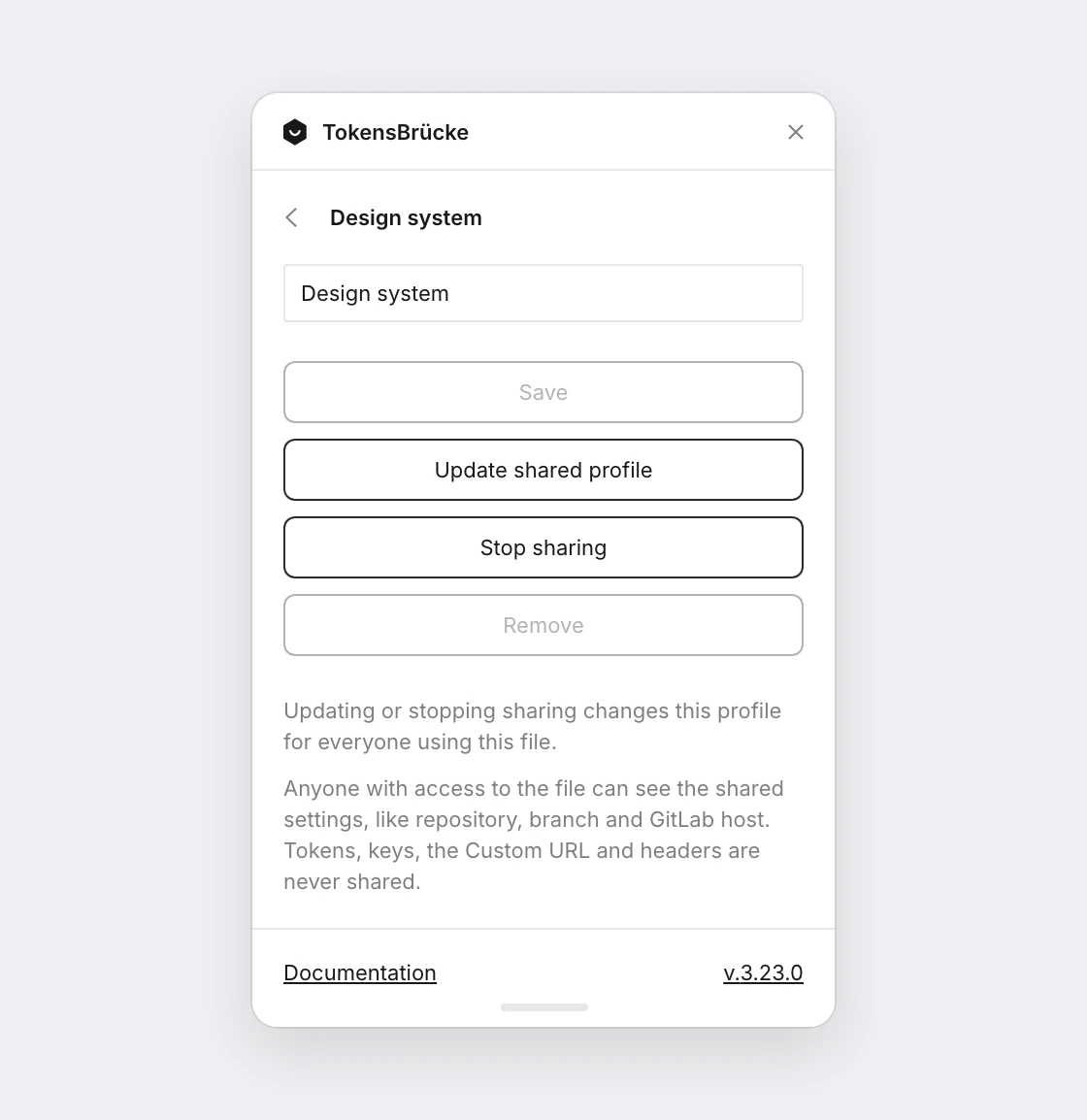
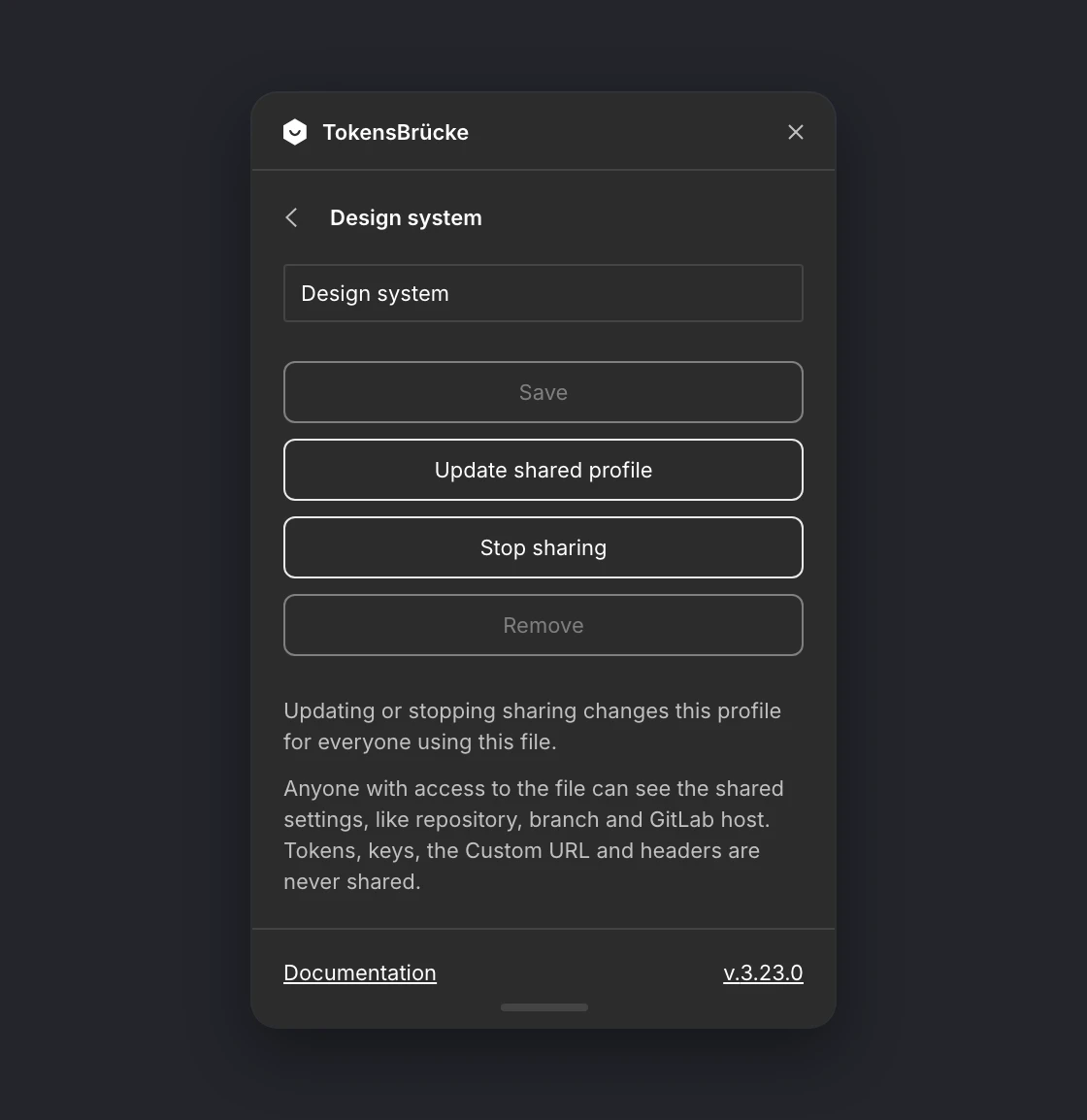
Section titled “Changing or stopping a shared profile”Open a shared profile with ⋮ to change it for everyone who uses the file: Update shared profile writes your current settings to the file, and Stop sharing removes it from the file. Local copies stay as they are.
Config autosaving
Section titled “Config autosaving”The plugin saves the config automatically, so you don’t need to set it up every time you run the plugin.